如何将 STEP 转换为 STL 用于 3D 打印 (2026)
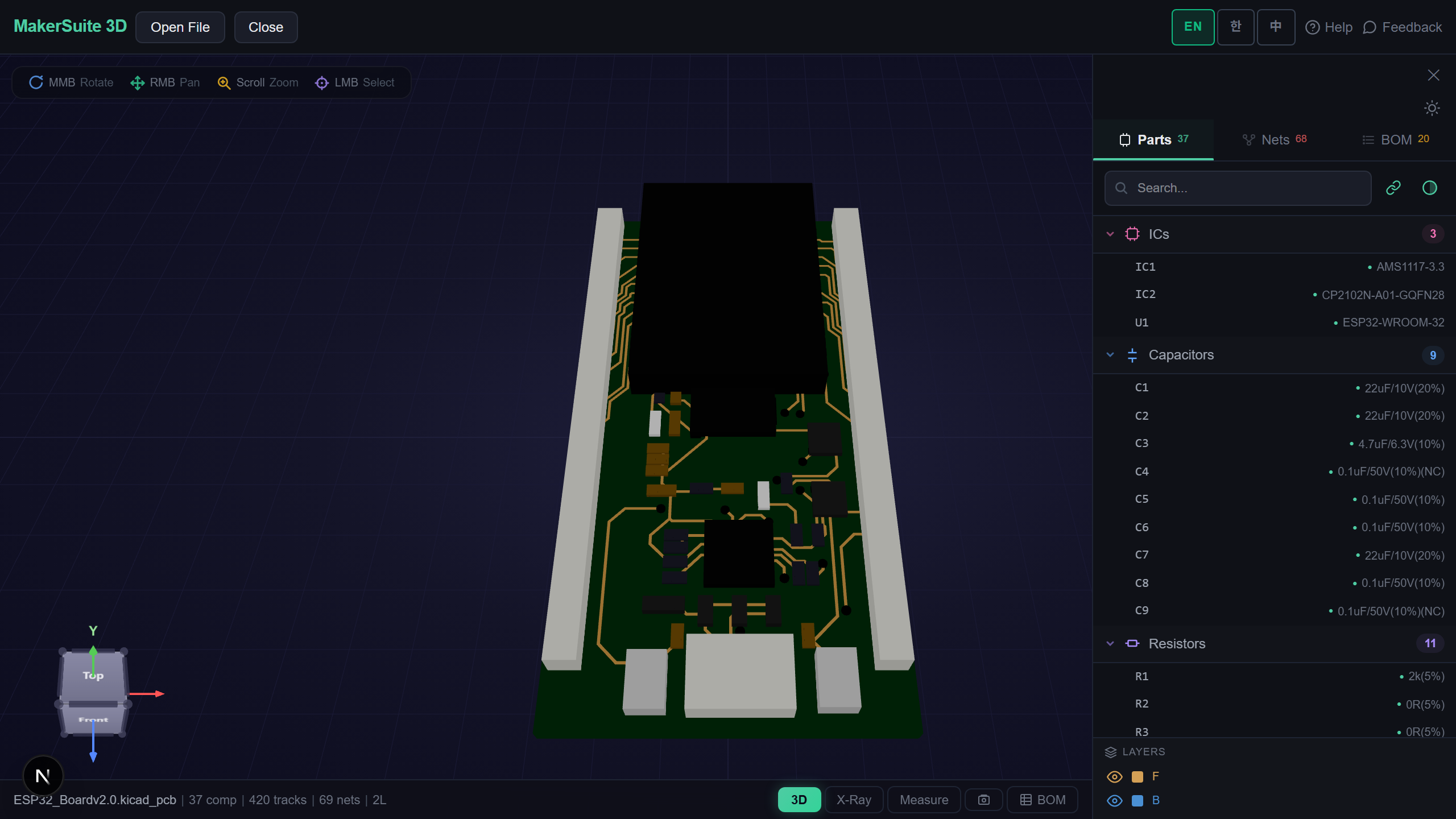
STEP 用于 CAD,STL 用于打印
STEP 文件存储精确的数学曲面(B-rep)——对 CAD 很完美,但没有切片软件能读它。要 3D 打印一个 STEP 零件,你得先把它细分成 STL,也就是一堆平面三角形组成的网格。转换本身很简单,但你选的分辨率决定了曲面是打印得光滑还是有棱面。本指南讲清楚实际会变什么、如何选一个合理的三角形数量,以及如何在浏览器中转换而无需安装 FreeCAD 或上传你的 IP。
STEP 变成 STL 时发生了什么
STEP 文件把圆柱描述为'半径 r、高 h 的圆柱'——一个精确的方程。STL 无法存储方程,只能存三角形。于是转换器对 STEP 曲面采样,用三角网格去近似。平面完美转换。曲面变成一系列棱面——三角形越多,曲面越光滑,文件越大。装配结构、颜色和元数据也会丢失;STL 只是一层匿名的三角形外壳。对 3D 打印来说没问题,因为切片软件只需要外表面。
浏览器转换器给你的东西
- 可调分辨率 — 选择细分质量,让曲面零件既光滑又不让文件臃肿。
- 即时预览 — 下载前用 3D 查看三角化后的网格,抓出棱面过多或过少。
- 二进制 STL 输出 — 紧凑、可直接切片的文件,在 Cura、PrusaSlicer 或 Bambu Studio 里加载很快。
- 打印前测量 — 确认尺寸在转换后仍以毫米为单位保持正确。
- 免上传 — 细分通过 OCCT WASM 在浏览器中运行,你的 CAD 绝不离开机器。
- 跨平台 — 无需安装 FreeCAD 或 Fusion 360,在任意系统和平板上都能用。
把 STEP 转换为 STL,分步操作
- STEP→STL 打开免费的 STEP→STL 转换器,拖入你的 .step 或 .stp 文件——它会直接在浏览器中加载。
- 零件以 3D 显示;旋转并测量,确认是正确的模型、正确的比例。
- 选择细分质量:方正的支架选低,有机或曲面多的选高。观察预览随之更新。
- 下载二进制 STL——它只含网格,可直接用于任何切片软件。
- 把 STL 导入切片软件(Cura、PrusaSlicer、Bambu Studio)并照常切片。
把你的 STEP 转成可打印的 STL——免费,在浏览器中。
免费试用 MakerSuite 3D为什么分辨率是最关键的决定
分辨率选太低,光滑的轴会打印成有棱的多面柱;选太高,你会得到一个 200MB 的 STL,在常见层高下没有可见好处却把切片软件卡住。合适的设置取决于你在意的最小曲率和打印机分辨率——0.4mm 喷嘴无法呈现比它挤出更精细的棱面。下载前预览网格,就能找到甜蜜点而不是靠猜。
什么时候你会把 STEP 转成 STL
- 打印供应商提供的外壳、支架或机械件的 STEP 模型时。
- 把 Fusion 360 或 SolidWorks 的导出变成可打印网格时。
- 把下载的 STEP 元件——连接器、铜柱或齿轮——准备好用于打印时。
- 在把供应商零件放进 CAD 装配之前检查它是否合适时。
- 在没有 CAD 软件的机器上转换时——Chromebook、平板或受限的公司电脑。
你的 CAD 留在你的设备上
转换完全在浏览器中通过 OpenCASCADE 的 WebAssembly 构建运行。你的 STEP 文件绝不会上传到服务器,因此专有零件和客户 CAD 保持私密——在处理有 NDA 的机械设计时这一点很重要。
常见的 STEP→STL 陷阱
最大的错误是以为 STL 可逆。一旦细分,精确曲面就没了——你无法把结果干净地拿回 CAD 编辑。把 STEP 当作唯一可信源,STL 只用于打印导出。如果有人给你一个 STL 并要'STEP',那是逆向工程任务,不是格式转换。
第二个陷阱是比例和单位。STEP 几乎总是毫米,但马虎的导出或设成英寸的切片软件能把零件缩放 25.4 倍。下载前在查看器里测量模型,确认包围盒与真实零件相符——一个本该 60mm 的支架读数为 2.36,那是单位不匹配,不是转换错误。
常见问题
Is converting STEP to STL lossless?
Geometrically, no — it's an approximation. STEP stores exact surfaces; STL stores triangles. Flat faces convert exactly, but curves are approximated by facets, so there's always some deviation from the true surface. You control how small that deviation is via the tessellation resolution. For 3D printing the approximation is invisible once it's finer than your nozzle and layer height.
What resolution should I use?
Match it to your printer and the part. For blocky mechanical parts with mostly flat faces, a low setting is fine and keeps the file small. For curved or organic shapes, raise it until the preview looks smooth — but stop once facets are finer than your nozzle (typically 0.4 mm), because finer detail won't print. Preview the mesh before downloading to avoid guessing.
Can I convert STL back to STEP afterwards?
Not cleanly. STL to STEP isn't a true conversion — it's reverse engineering, because the exact surfaces were discarded during tessellation. Tools can wrap a mesh in surfaces but the result is messy and hard to edit. Always keep your original STEP as the source of truth and treat STL as a one-way, print-only export.
Will the part be the right size?
It will if the units are right. STEP is almost always in millimeters; problems happen when an export or a slicer assumes inches, scaling the part by 25.4 times. Measure the model in the viewer before downloading and confirm the bounding box matches the real part's dimensions. If it's off by 25.4, it's a unit mismatch — re-check your export settings.
Do I need FreeCAD or Fusion 360 to convert?
No. The browser converter tessellates STEP to STL using a WebAssembly build of OpenCASCADE — the same geometry kernel FreeCAD uses — entirely on your machine. There's no install and nothing is uploaded, so it works on a Chromebook, tablet, or a locked-down work PC where you can't install CAD software.
相关文章
准备好把 STEP 转换为 STL 了吗?
打开 STEP→STL 转换器