在浏览器中打开 GitHub 上的 PCB 文件 — 并添加 README 徽章
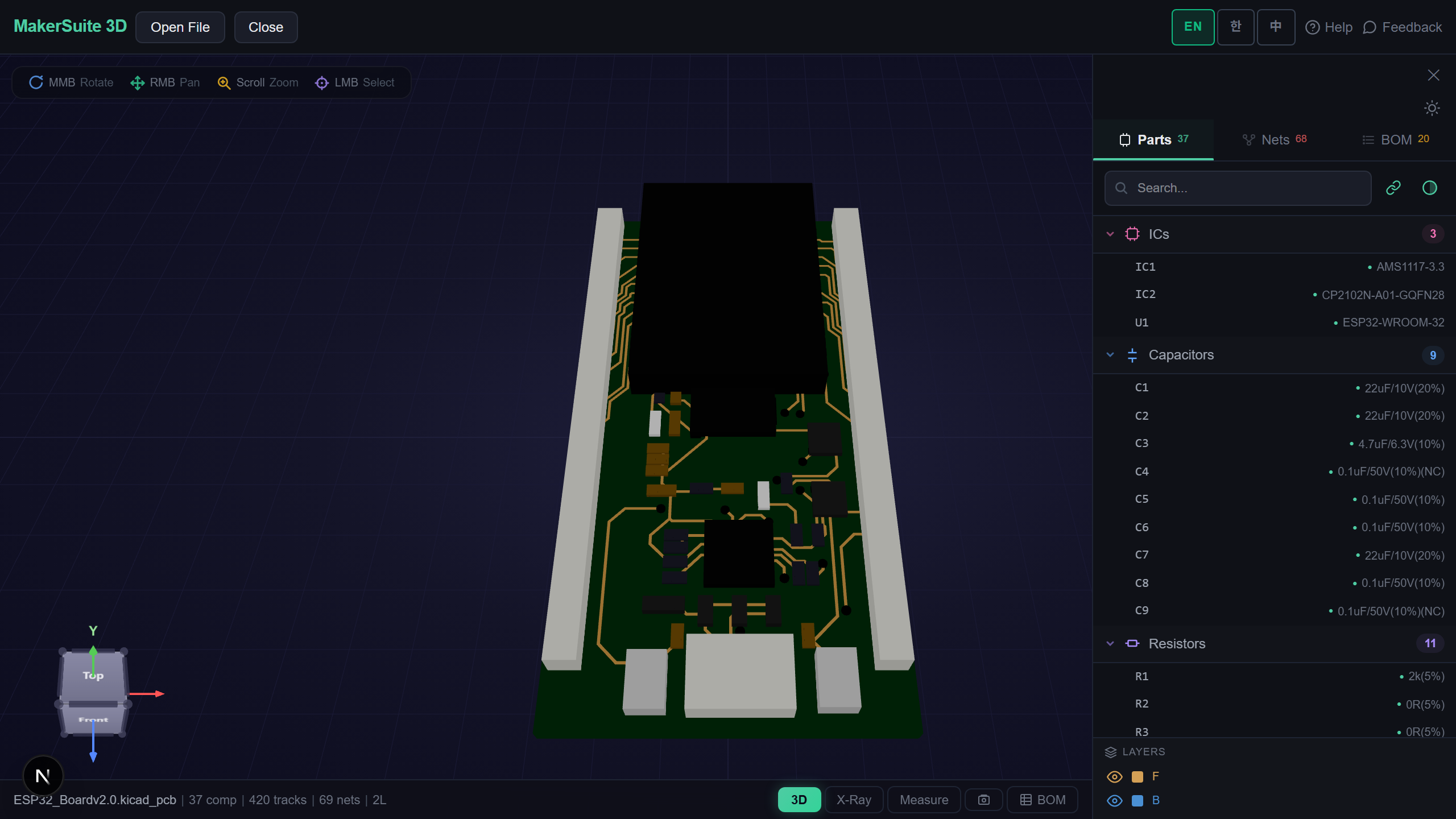
GitHub 上的电路板,一键即可查看
GitHub 只会把 .kicad_pcb 或 .PcbDoc 显示为一大段文本或“二进制文件”提示。想真正看到电路板,就得克隆仓库再用 CAD 工具打开。现在只需把文件的 GitHub 链接粘贴到 MakerSuite 3D,电路板就会以 3D 打开——浏览器直接从 GitHub 下载,文件不经过我们的服务器。
如何打开 GitHub 文件
- 在 GitHub 上打开设计文件本身(此时地址栏包含 /blob/),复制链接
- 粘贴到 MakerSuite 3D 首页拖放区下方的链接输入框,或访问 pcbviewer.app/open?url= 加上该链接
- 电路板或原理图在查看器中打开;KiCad 层次原理图会自动从同一文件夹获取子图纸
- 在查看器中打开“分享”,即可复制该文件的 README 徽章
生成 README 徽章
粘贴电路板或原理图文件的 GitHub 链接。把 Markdown 放进 README:任何人点击徽章都能在这里以 3D 打开该文件,且始终是该分支的最新版本。
Paste a GitHub link and see the board in 3D - nothing to install.
免费试用 MakerSuite 3D支持的内容
- 格式 — 查看器能打开的所有电路板、原理图和库格式:KiCad、Altium、Eagle、EasyEDA、PADS、P-CAD、Protel 99 以及 Gerber ZIP
- 链接 — GitHub 文件页(/blob/、/raw/)、raw.githubusercontent.com 链接、GitLab 文件页,以及用 Git LFS 存储的文件
- 层次结构 — 从同一文件夹获取 KiCad 原理图的子图纸
- 隐私 — 从 GitHub 直接下载到你的浏览器,文件不会上传到任何地方
限制
私有仓库无法通过这种方式打开(浏览器无权访问),请下载文件后拖入。在中国大陆经常无法访问 GitHub,同样请使用这种方式。 仅支持 GitHub 和 GitLab 链接;其他位置的文件请下载后拖入。
为什么用徽章而不是截图
README 里的截图在电路板一改动时就过时了。徽章指向分支上的文件本身,每次点击都显示当前布局,还能继续使用网络高亮、测量、BOM 和 DFM 检查。
对读者来说,它省去了“克隆、安装 KiCad、打开”这一步——大多数人正是因为这一步,从未打开过硬件仓库里的电路板。
常见问题
Is the file uploaded to MakerSuite 3D?
No. Your browser downloads the file directly from GitHub (raw.githubusercontent.com allows this) and parses it locally. Nothing is sent to our server.
Which links work?
A GitHub file page (the address contains /blob/ or /raw/), a raw.githubusercontent.com link, or a GitLab file page. A repository or folder link does not work - open the file first and copy its address.
Does the badge always show the latest version?
Yes, if the link points at a branch such as main: each click downloads the file as it is on that branch. Link to a tag or commit to pin a version.
Can I open a private repository?
No. The browser has no access to private files. Download the file and drop it onto the page instead.
相关文章
现在就粘贴 GitHub 链接打开电路板——免费。
打开 MakerSuite 3D