How to Convert STEP to STL for 3D Printing (2026)
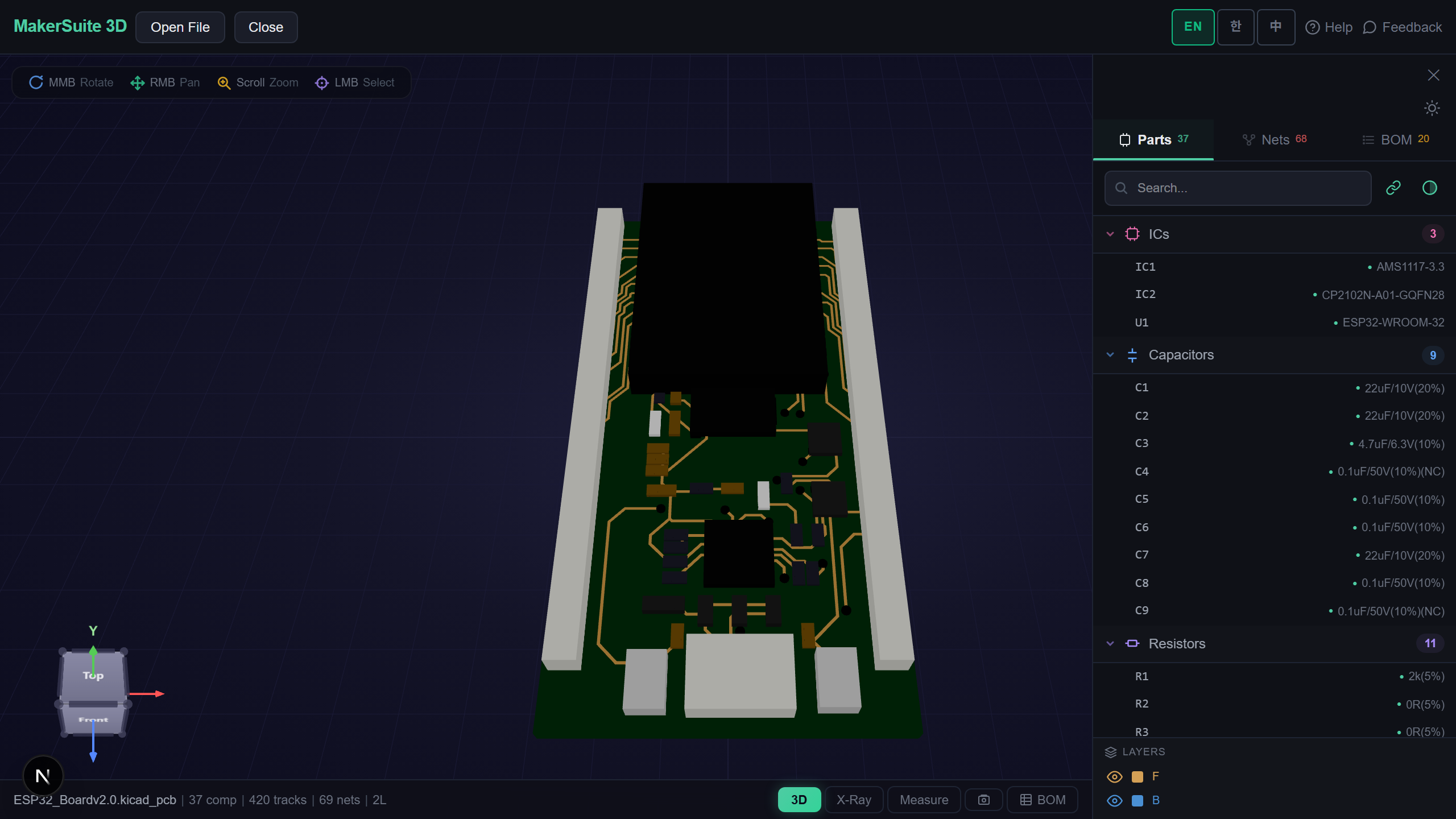
STEP is for CAD, STL is for printing
STEP files store exact mathematical surfaces (B-rep) — perfect for CAD, but no slicer reads them. To 3D print a STEP part you first tessellate it into STL, a mesh of flat triangles. The conversion is straightforward, but the resolution you pick decides whether curved surfaces print smooth or faceted. This guide explains what actually changes, how to choose a sane triangle count, and how to convert in your browser without installing FreeCAD or uploading your IP.
What happens when STEP becomes STL
A STEP file describes a cylinder as 'a cylinder of radius r and height h' — an exact equation. STL can't store equations; it only stores triangles. So the converter samples the STEP surfaces and approximates them with a triangle mesh. Flat faces convert perfectly. Curves become a series of facets — more triangles means smoother curves and a larger file. You also lose assembly structure, colors, and metadata; an STL is a single anonymous shell of triangles. For 3D printing that's fine, because the slicer only needs the outer surface.
What the browser converter gives you
- Adjustable resolution — Pick a tessellation quality so curved parts print smooth without bloating the file.
- Instant preview — See the triangulated mesh in 3D before you download, so you catch over- or under-faceting.
- Binary STL output — Compact, slicer-ready files that load fast in Cura, PrusaSlicer, or Bambu Studio.
- Measure before you print — Confirm the dimensions survived the conversion, in millimeters.
- No upload — Tessellation runs in your browser via OCCT WASM; your CAD never leaves the machine.
- Cross-platform — Works on any OS and on tablets, with no FreeCAD or Fusion 360 install.
Converting STEP to STL, step by step
- STEP→STL Open the free STEP→STL converter and drop in your .step or .stp file — it loads directly in the browser.
- The part appears in 3D; rotate and measure it to confirm it's the right model at the right scale.
- Choose a tessellation quality: low for blocky brackets, high for organic or curved parts. Watch the preview update.
- Download the binary STL — it's mesh-only and ready for any slicer.
- Import the STL into your slicer (Cura, PrusaSlicer, Bambu Studio) and slice as usual.
Convert your STEP to a print-ready STL — free, in your browser.
Try MakerSuite 3D FreeWhy resolution is the decision that matters
Pick too low a resolution and a smooth shaft prints as a faceted prism; pick too high and you get a 200 MB STL that chokes your slicer for no visible benefit at typical layer heights. The right setting depends on the smallest curve you care about and your printer's resolution — a 0.4 mm nozzle can't render facets finer than it can extrude. Previewing the mesh before download lets you find the sweet spot instead of guessing.
When you'll convert STEP to STL
- Printing a vendor's STEP model of an enclosure, bracket, or mechanical part.
- Turning a Fusion 360 or SolidWorks export into a printable mesh.
- Prepping a downloaded STEP component — a connector, standoff, or gear — for a print run.
- Checking that a supplier's part fits before committing it to a CAD assembly.
- Converting on a machine without CAD software — a Chromebook, tablet, or locked-down work PC.
Your CAD stays on your device
The conversion runs entirely in your browser using a WebAssembly build of OpenCASCADE. Your STEP file is never uploaded to a server, so proprietary parts and client CAD stay private — important when you're handling NDA'd mechanical designs.
Common STEP-to-STL pitfalls
The biggest mistake is treating STL as reversible. Once you tessellate, the exact surfaces are gone — you can't cleanly edit the result back in CAD. Keep your STEP as the source of truth and only export STL for printing. If someone hands you an STL and asks for 'the STEP,' that's a reverse-engineering job, not a conversion.
The second trap is scale and units. STEP is almost always millimeters, but a sloppy export or a slicer set to inches can shrink or inflate the part by 25.4×. Measure the model in the viewer before you download and confirm the bounding box matches the real part — a bracket that should be 60 mm reading 2.36 is a unit mismatch, not a conversion error.
Frequently Asked Questions
Is converting STEP to STL lossless?
Geometrically, no — it's an approximation. STEP stores exact surfaces; STL stores triangles. Flat faces convert exactly, but curves are approximated by facets, so there's always some deviation from the true surface. You control how small that deviation is via the tessellation resolution. For 3D printing the approximation is invisible once it's finer than your nozzle and layer height.
What resolution should I use?
Match it to your printer and the part. For blocky mechanical parts with mostly flat faces, a low setting is fine and keeps the file small. For curved or organic shapes, raise it until the preview looks smooth — but stop once facets are finer than your nozzle (typically 0.4 mm), because finer detail won't print. Preview the mesh before downloading to avoid guessing.
Can I convert STL back to STEP afterwards?
Not cleanly. STL to STEP isn't a true conversion — it's reverse engineering, because the exact surfaces were discarded during tessellation. Tools can wrap a mesh in surfaces but the result is messy and hard to edit. Always keep your original STEP as the source of truth and treat STL as a one-way, print-only export.
Will the part be the right size?
It will if the units are right. STEP is almost always in millimeters; problems happen when an export or a slicer assumes inches, scaling the part by 25.4 times. Measure the model in the viewer before downloading and confirm the bounding box matches the real part's dimensions. If it's off by 25.4, it's a unit mismatch — re-check your export settings.
Do I need FreeCAD or Fusion 360 to convert?
No. The browser converter tessellates STEP to STL using a WebAssembly build of OpenCASCADE — the same geometry kernel FreeCAD uses — entirely on your machine. There's no install and nothing is uploaded, so it works on a Chromebook, tablet, or a locked-down work PC where you can't install CAD software.
Related Articles
Ready to convert STEP to STL?
Open the STEP→STL Converter