How to Convert STL to OBJ (2026 Guide)
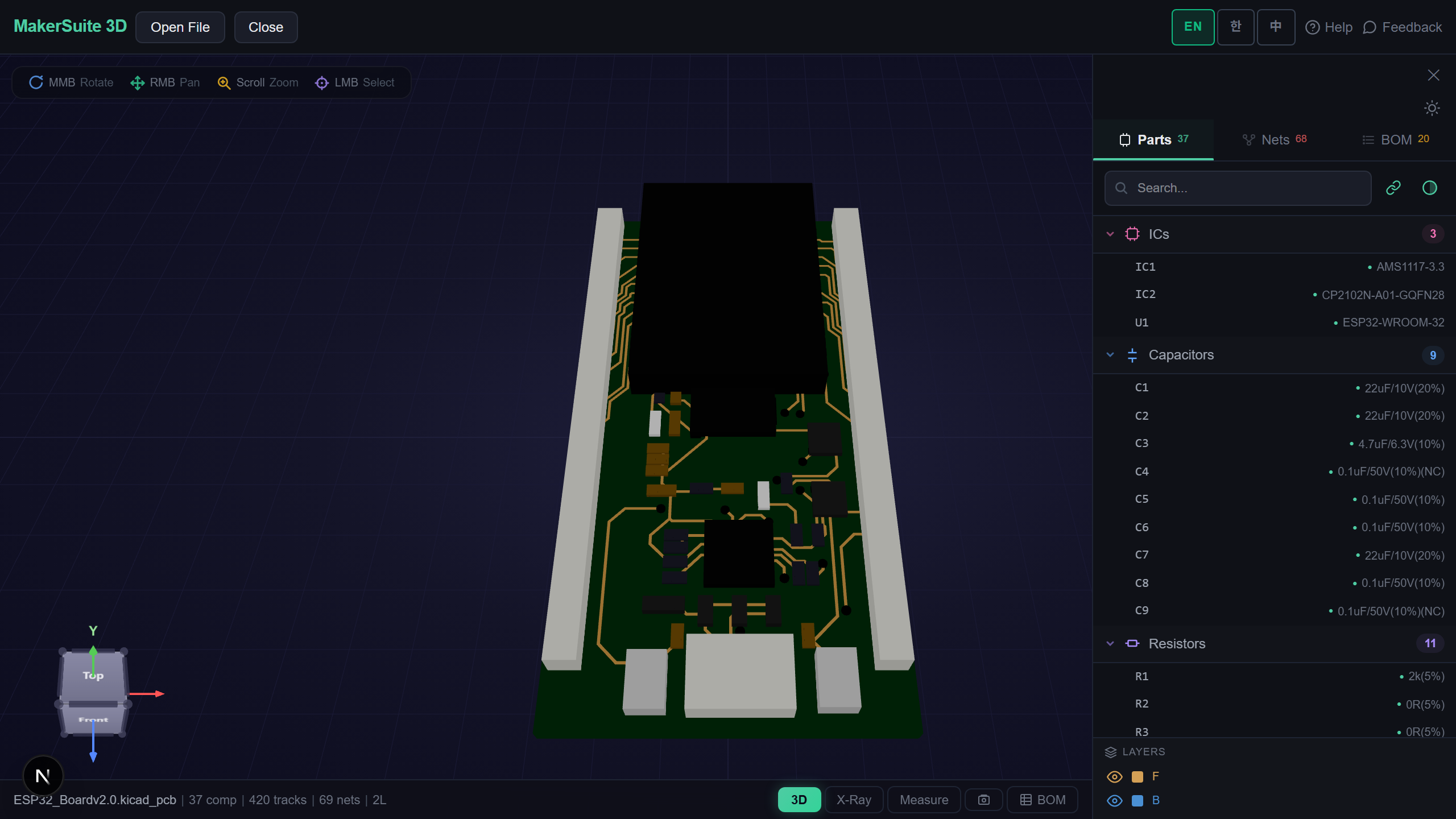
Two mesh formats, one quick conversion
STL and OBJ are both triangle-mesh formats, so converting between them is geometrically lossless. The reason to go STL→OBJ is usually to reach a format that can hold more — named groups, material references, vertex normals, texture coordinates — or because a downstream tool like Blender, a game engine, or a renderer simply prefers OBJ. This guide explains exactly what changes, when OBJ is the better choice, and how to convert in your browser without uploading the mesh.
What STL and OBJ each store
STL is the simplest possible 3D format: a flat list of triangles with no names, colors, units, or grouping. OBJ is also a mesh format but adds structure — it can carry vertex normals and UV texture coordinates, named object and group tags, and a reference to a .mtl material file for colors and textures. Converting STL→OBJ is lossless for geometry, since every triangle survives, but STL had nothing to fill OBJ's extra fields, so you get a clean single-group OBJ with no materials unless you add them later.
What the browser converter gives you
- Lossless geometry — Every triangle from your STL transfers exactly, with no decimation or smoothing.
- Instant 3D preview — Confirm the mesh looks right before you download.
- Clean OBJ output — Standard Wavefront OBJ that loads in Blender, Maya, and game engines.
- Measure to verify — Check the dimensions survived, in millimeters.
- No upload — The conversion runs in your browser; your mesh never hits a server.
- Cross-platform — Any OS, any browser, tablets included, with no software install.
Converting STL to OBJ, step by step
- STL→OBJ and drop in your .stl file — binary or ASCII both work, and it loads directly in the browser.
- The mesh appears in 3D; rotate and measure it to confirm it's the right model at the right scale.
- Download the OBJ — it's a clean single-group Wavefront mesh ready for your next tool.
- Import the OBJ into Blender, a game engine, or a renderer, and assign materials there if you need color.
- Keep the original STL if you're heading back to a slicer — most slicers prefer STL anyway.
Convert STL to OBJ free in your browser — no upload.
Try MakerSuite 3D FreeWhy pick OBJ over STL
STL is the lingua franca of 3D printing, but it's a dead end for anything beyond a single printable shell — no color, no parts, no texture. OBJ exists where a model needs to carry more meaning: a multi-part assembly you'll texture in Blender, an asset for a game engine, or a render that needs materials. If your next step is printing, stay in STL; if it's modeling, texturing, or real-time rendering, OBJ is the better container.
When you'll convert STL to OBJ
- Importing a printed part into Blender to texture or render it.
- Bringing an STL asset into a game engine that expects OBJ.
- Adding named groups or materials that a downstream pipeline requires.
- Sharing a mesh with a collaborator whose tool reads OBJ but not STL.
- Converting on a machine with no 3D software — a Chromebook or locked-down work PC.
Your mesh stays on your device
The conversion runs entirely in your browser. Your STL is never uploaded, stored, or sent to a server, so proprietary parts and client work stay private — useful when you're handling models under NDA or just don't want a file leaving your machine.
Common STL-to-OBJ pitfalls
The most common surprise is expecting color or materials to appear — they won't. STL never stored color, so a straight conversion produces an untextured OBJ. Color and materials are something you add afterward in Blender or via a .mtl file; the converter can't invent data the STL didn't have.
The second is OBJ's larger size and slower parsing. OBJ is a text format, so the same mesh is bigger and loads slower than a binary STL — fine for modeling, but don't convert to OBJ just to move a file around. Also watch units: OBJ has no unit field, so the receiving tool decides scale — confirm dimensions after import.
Frequently Asked Questions
Is converting STL to OBJ lossless?
Yes, geometrically. Both are triangle meshes, so every triangle transfers exactly with no smoothing or decimation. What OBJ adds — groups, materials, UVs — STL never had, so a straight conversion gives a clean but untextured single-group OBJ. You add color and materials afterward.
Will my colors transfer?
No, because STL doesn't store color. A standard STL is geometry only, so the OBJ comes out untextured. If you need color, add a .mtl material in Blender or your renderer after importing the OBJ.
Which is better for 3D printing?
STL. Slicers are built around STL and most prefer it, while OBJ support is inconsistent. Convert to OBJ only when your next step is modeling, texturing, or a game engine. For printing, keep the STL.
Why is the OBJ bigger than the STL?
OBJ is a text format and binary STL is compact, so the same mesh is larger and parses slower as OBJ. That's fine for modeling, but it's a reason not to convert just to move a file around.
Do I need Blender to convert?
No. The browser converter turns STL into OBJ entirely on your machine — no install, nothing uploaded. Use Blender afterward only if you want to add materials, textures, or edit the mesh.
Related Articles
Ready to convert STL to OBJ?
Open the STL→OBJ Converter