How to Convert OBJ to STL — Free Online Mesh Conversion
OBJ to STL Is the Easy Conversion
OBJ and STL are both triangle mesh formats with no curves and no parametric history. Converting between them is straightforward: read triangles in OBJ, write triangles in STL. The geometry survives losslessly — every triangle in OBJ becomes one triangle in STL — but anything specific to OBJ disappears. UV texture coordinates, material assignments (.mtl files), per-vertex colors, smoothing groups, and named object hierarchy all drop on the floor because STL doesn't store any of them. For 3D printing this is fine; slicers only need watertight geometry. For visualization or game assets it's a downgrade. This guide covers when each format wins, what gets lost, and how to do the conversion without uploading to sketchy free converter sites.
What OBJ and STL Actually Store
OBJ is an ASCII text format from Wavefront Technologies (1990s). It stores vertices (v lines), texture coordinates (vt), normals (vn), and faces (f lines that index into all three). It supports polygons of any vertex count (triangles, quads, n-gons) and pairs with a separate .mtl file for materials. STL is the simpler format invented for 3D Systems' SLA printers in 1989. It stores only triangles — three vertices and a face normal per triangle — in either ASCII text or binary (50 bytes per triangle). STL has no concept of materials, textures, normals beyond per-face, vertex sharing, or hierarchy. Converting OBJ to STL means triangulating any quads/n-gons and discarding everything except the triangles themselves.
What the Conversion Preserves and Drops
- Geometry preserved — every vertex and face from the OBJ ends up in the STL. Quads and n-gons get triangulated automatically (most converters use ear-clipping or fan triangulation).
- Materials dropped — STL has no material concept. The .mtl file is ignored entirely. If your OBJ used multiple materials for color regions, the STL collapses everything to a single uncolored mesh.
- Textures dropped — UV coordinates, texture image references, all gone. STL is geometry only.
- Hierarchy flattened — OBJ's named object groups (o, g lines) merge into one mesh in binary STL. ASCII STL supports a 'solid name' but only one per file in practice.
- File size — binary STL is usually smaller than ASCII OBJ for the same geometry (50 bytes/triangle vs ~100 chars/triangle), even though both store the same triangle count.
- Reversible? — STL to OBJ converts cleanly but you don't get materials back. The OBJ→STL→OBJ round trip is not lossless: you start with a textured OBJ and end with an uncolored OBJ.
How to Convert OBJ to STL in Five Steps
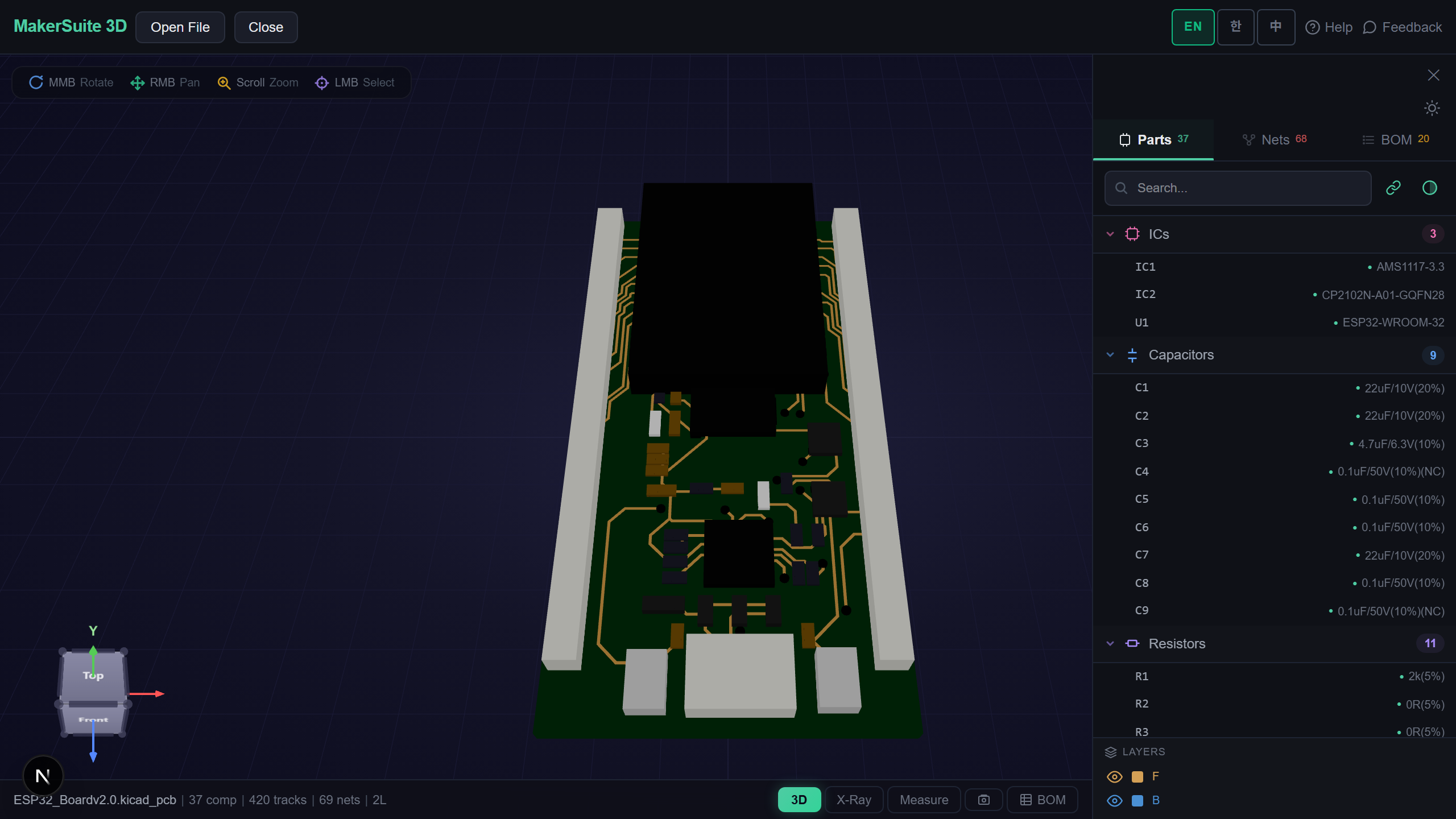
- Open pcbviewer.app — drop your .obj file on MakerSuite 3D's 3D viewer to inspect the geometry first. Verify the model is what you expect, no missing faces or flipped normals.
- Click the Export button and choose STL. The tool triangulates any non-triangle faces, writes binary STL, and offers it for download. Conversion completes in milliseconds for typical meshes.
- For batch conversion, use Blender's command line: blender --background --python-expr "import bpy; bpy.ops.wm.obj_import(filepath='in.obj'); bpy.ops.wm.stl_export(filepath='out.stl')". Batch a folder via shell loop.
- Verify the STL by reopening in MakerSuite 3D. Check triangle count matches expectations (no degenerates lost), check the bounding box equals the OBJ's, check the model is watertight if you're going to print it.
- If the goal is 3D printing, run a non-manifold check before sending to the slicer. STL from a colored OBJ usually loses no geometry but might expose preexisting non-manifold edges that the original OBJ tolerated.
Drop the OBJ and the converted STL together in MakerSuite 3D — visual diff confirms triangulation didn't break anything before you send it to the slicer.
Try MakerSuite 3D FreeWhen to Use OBJ vs STL
STL wins for 3D printing — every slicer (Cura, PrusaSlicer, Bambu Studio, Lychee) treats STL as the reference format, and binary STL is compact and fast to parse. STL also wins for CAD-to-CAM handoff because CAM software expects watertight triangles with no extra metadata. OBJ wins for everything visual: game asset pipelines, archviz renders, photogrammetry output, sculpting tools (ZBrush, Blender) all preserve textures and materials in OBJ. The conversion only goes one way without loss — OBJ→STL drops material data, STL→OBJ doesn't add any material data back. Pick OBJ if you ever might want texture support; pick STL if you only ever need geometry and want maximum compatibility.
When OBJ to STL Is the Right Conversion
- Sculpted model going to a 3D printer — ZBrush/Blender export OBJ, slicer wants STL, simple lossless geometry handoff
- Photogrammetry pipeline — RealityCapture/Meshroom output OBJ with texture, you only need the geometry for CNC or analysis
- Game asset to 3D print — character or prop asset in OBJ format, fan wants to print a physical version, materials don't matter
- CAD plugin output — older CAD tools export OBJ, downstream tooling expects STL, conversion bridges the gap
- Asset pipeline cleanup — strip materials before archiving, smaller STL is the canonical 'just the geometry' format
Convert in the Browser Without Uploading
Online OBJ-to-STL converters (Convertio, AnyConv, FreeOnlineConverter) require uploading the file to their servers. For NDA work, scanned faces (medical/dental), or unreleased product designs, that's an immediate non-starter. MakerSuite 3D parses OBJ and exports STL entirely in your browser via JavaScript — no server, no upload, no cached copy on someone else's disk. Open the file, export, save, done. Your geometry stays on your machine.
When STL Is the Wrong Choice
If your downstream tool can read OBJ, keep OBJ. STL was designed in 1987 for stereolithography and stores three vertices per triangle without any sharing — meaning a quad becomes two triangles with six vertices total instead of four shared ones. For dense meshes, OBJ files are 30–50% smaller because OBJ stores a vertex list and references it from triangles. Game engines, web viewers, and most modern visualization tools handle OBJ natively. The push to STL is almost always driven by a slicer or CAM tool that doesn't know any better.
Texture coordinates are the most-missed casualty. If your OBJ ships with a .mtl file and texture images, those are essential for visualization but invisible to STL. After conversion, the model is just gray geometry. If your OBJ-to-STL pipeline is for 3D printing, this is fine — printers don't care about textures. If it's for any kind of visualization or rendering, stop and reconsider whether 3MF (which preserves materials) or GLB (which embeds textures) is the better target format.
Frequently Asked Questions
Will my OBJ textures show up in the STL?
No. STL has no concept of textures, materials, or UV coordinates — it stores triangle geometry only. The .mtl file your OBJ references and any .png/.jpg textures get ignored entirely during conversion. If color and texture matter (game asset, archviz render, photogrammetry handoff), keep the OBJ or convert to a format that supports materials like FBX, glTF, or 3MF. STL is the right choice when you only need geometry — 3D printing, CNC, mesh analysis, finite element prep.
Why does my OBJ have quads but STL only has triangles?
STL was specified for stereolithography in 1989 with triangles only — no quads, no n-gons. OBJ supports faces of any vertex count. During conversion, every quad in your OBJ gets split into two triangles, every n-gon gets fan-triangulated. Most converters use ear-clipping for non-convex polygons. The geometry stays the same, but the triangle count roughly doubles for a quad-heavy model. This is fine for printing — slicers triangulate internally anyway — but causes confusion when you compare 'face count' between the OBJ and the STL.
ASCII STL or binary STL — which should I use?
Binary STL almost always. Binary stores 50 bytes per triangle (12 bytes for the normal, 36 bytes for three vertices, 2 bytes attribute byte count), which is roughly 4× smaller than ASCII for the same model. ASCII STL is human-readable but slow to parse and bloated on disk. Slicers, CAD software, and CAM tools handle binary STL natively. The only reason to write ASCII is for debugging or version control diffability — and even then, OBJ is a better choice for diffability since it's already text.
Will my OBJ be watertight after conversion?
Watertight or not is a property of the source geometry, not the conversion. If the OBJ had non-manifold edges, holes, or T-junctions, the STL inherits all of them. The conversion is geometric — it preserves vertices and faces verbatim — so problems in the OBJ become problems in the STL. Run a non-manifold check on the OBJ before converting if you're going to 3D print. MakerSuite 3D's mesh repair detects non-manifold edges, flipped normals, and holes; fix them in the OBJ first, then convert to STL.
Can I convert OBJ to STL in batch?
Yes, several ways. (1) Blender command line: blender --background --python-expr "import bpy; bpy.ops.wm.obj_import(filepath='in.obj'); bpy.ops.wm.stl_export(filepath='out.stl')" wrapped in a shell loop. (2) MeshLab CLI: meshlabserver -i in.obj -o out.stl with a script. (3) Custom Python with trimesh library: import trimesh; mesh = trimesh.load('in.obj'); mesh.export('out.stl'). For one-off conversions or interactive use, MakerSuite 3D handles single files in the browser. For 100+ files, write a shell script with one of the CLI tools.
Related Articles
Drop your OBJ file — convert to STL in your browser, no upload
Launch 3D Viewer