How to Convert 3MF to STL — Modern 3D Print Format Explained
3MF Is What STL Should Have Been
3MF (3D Manufacturing Format) is what the 3D printing industry built when it finally admitted STL was holding everyone back. Same triangle mesh data, but in a zipped XML container with built-in support for colors, materials, multiple objects per file, print metadata, and digital signatures. Bambu Studio, PrusaSlicer, Cura, and Microsoft 3D Builder all default to 3MF for project files. But CNC shops, older slicers, and the wider mesh ecosystem still expect STL — so 3MF→STL conversion comes up constantly. The conversion itself is straightforward (extract triangles, drop everything else), but knowing what you lose helps you decide whether the conversion is the right move or whether you should keep the 3MF.
What 3MF and STL Actually Store
3MF is a ZIP archive (3MF Consortium spec, 2015) containing XML files: 3dmodel.model holds vertex/triangle data, [Content_Types].xml describes the package, .rels files map relationships. The 3D model XML supports per-vertex and per-triangle colors via texture references, multiple object instances with positioning, base materials, build instructions, and slicing parameters. STL is the polar opposite — a flat list of triangles with face normals, either ASCII or binary, no metadata, no colors, no hierarchy. Converting 3MF to STL extracts the triangle geometry from the zipped XML and writes it out as the simpler binary format, discarding everything in the 3MF wrapper that STL doesn't represent.
What the Conversion Preserves and Drops
- Geometry preserved — every vertex and triangle from the 3MF lands in the STL. If the 3MF contains multiple objects, they merge into one mesh in the STL or each gets its own STL file (depends on the converter).
- Per-vertex colors dropped — 3MF supports vertex colors (e.g., colored vase from a multi-color print), STL stores none. If color matters, keep the 3MF or export to OBJ instead.
- Materials dropped — 3MF base materials and printer profiles disappear. The slicer that imports the STL has to re-set material/filament profiles from scratch.
- Print metadata dropped — slicer settings, layer heights, infill, supports embedded in the 3MF do not transfer. Useful for project archival; lost in conversion.
- Multiple objects — 3MF can hold a build plate of 50 parts. STL conventionally holds one. Most converters merge into a single STL or output a folder of STLs (one per build object).
- File size — binary STL is roughly the same size as the raw triangle data (50 bytes/triangle). 3MF is usually smaller because the ZIP compression on XML triangle data hits 70-90% reduction. Going 3MF→STL almost always inflates file size.
How to Convert 3MF to STL in Five Steps
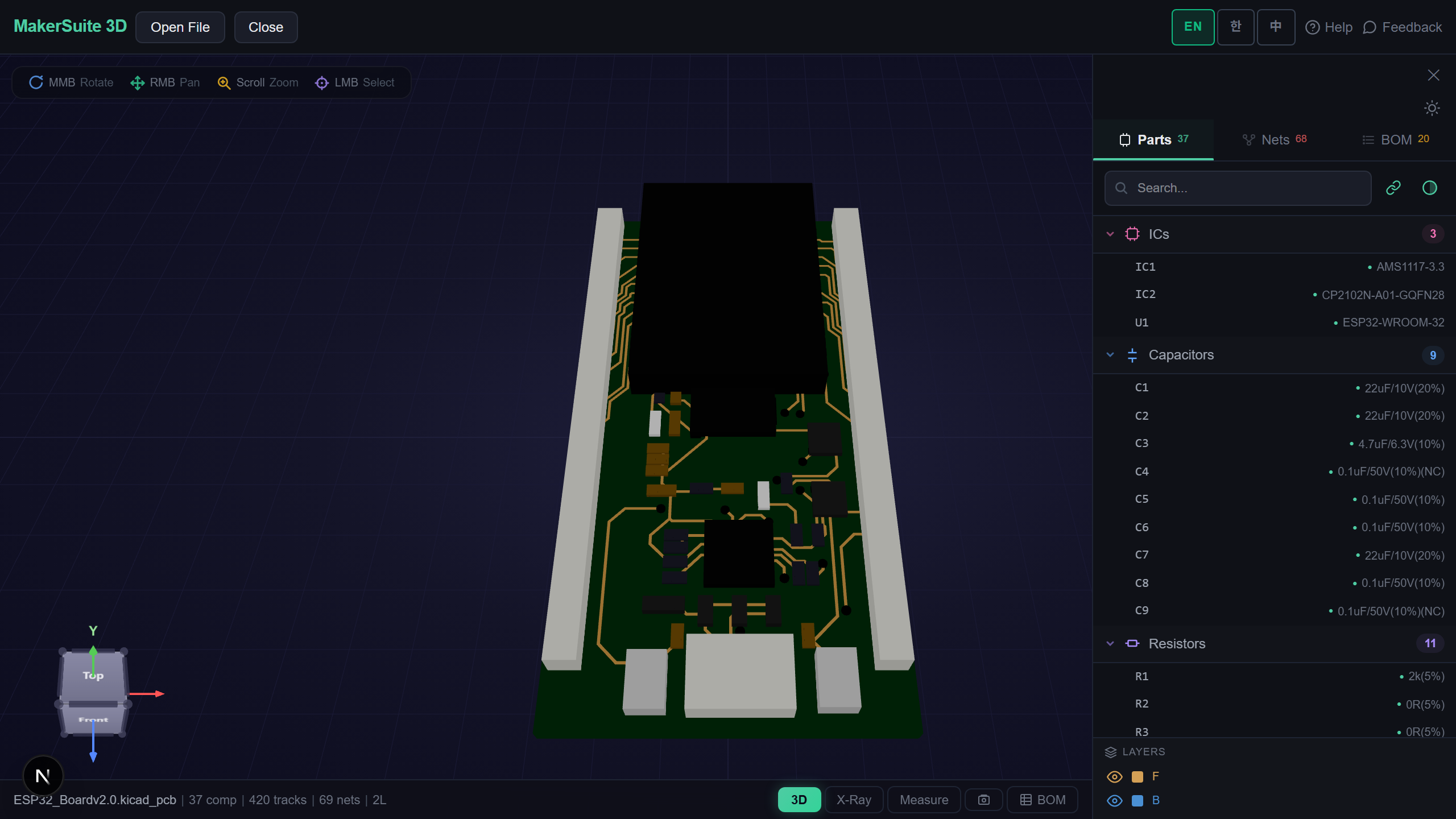
- Open pcbviewer.app — drop your .3mf file on MakerSuite 3D's 3D viewer to inspect the model first. The viewer shows each object as a separate node, so you can see whether the 3MF contains a single part or a build plate.
- Click the Export button and choose STL. The tool extracts triangles from the 3MF, merges all objects into one mesh, and writes binary STL. For per-object STL output, use Bambu Studio's File > Export > Export as STL with the 'each object as separate file' option.
- For batch conversion, use a slicer's CLI: prusa-slicer --export-stl in.3mf -o out.stl, or PrusaSlicer Python scripting. Bambu Studio also accepts CLI args.
- Verify by reopening the STL in MakerSuite 3D. Check the triangle count matches (no triangles lost), check the bounding box matches, check that the geometry is watertight before printing.
- If the conversion is for archival, keep both files — the 3MF preserves project state for future re-slicing with new printer profiles; the STL is the universal CAD/CAM handoff format.
Verify the converted STL matches the 3MF original — drop both in MakerSuite 3D side by side to catch any geometry loss before you send the STL to the print shop.
Try MakerSuite 3D FreeWhen to Convert 3MF to STL vs Keep 3MF
Convert to STL when the downstream tool requires it — CNC mills, sheet metal vendors, older slicer versions (pre-Cura 4, pre-PrusaSlicer 2.0), CAM software, and any platform without 3MF support. Keep the 3MF when archiving a project (slicer settings travel with the file), when sharing a multi-color or multi-material print, or when your slicer pipeline supports 3MF natively (every modern slicer does). The wider 3D printing ecosystem is converging on 3MF — Bambu Lab, Prusa, and Anycubic all default to 3MF for native file formats — but STL has 35 years of installed base and isn't going away. The right strategy is 3MF for editable project files, STL for unidirectional handoff to legacy tooling.
When 3MF to STL Is the Right Move
- 3MF from a colored print → CNC machining — geometry handoff to a mill that needs STL only, color is irrelevant for the new fab process
- Bambu Studio project → CAM software — toolpath generator only accepts STL, geometry needs to come out of the 3MF wrapper
- Multi-object 3MF → individual STLs — print farm wants each part as its own STL for batch scheduling
- 3MF from new slicer → old printer host — Octoprint/Repetier-Server installs that haven't been updated to handle 3MF natively
- Archive cleanup — strip slicer settings before publishing on Thingiverse/Printables for maximum compatibility
Convert in the Browser Without Uploading
Print designs, especially commercial ones, are IP. Online converters like Convertio and AnyConv require uploading the .3mf to their servers, where it sits cached on someone else's storage with unclear retention policies. MakerSuite 3D parses 3MF and exports STL entirely in your browser via JavaScript — the ZIP gets unpacked locally, the XML triangles read locally, the STL written locally and offered as a direct download. No server round-trip, no third party touches your geometry.
Bambu Studio's 3MF Has Quirks
Bambu Studio extends the 3MF format with proprietary fields that store toolhead assignments, AMS color slot mappings, and bed-mesh data. When you export from Bambu Studio and convert to STL, all of that disappears — which is fine if you're moving to a single-color printer but a real loss if the next slicer also supports color. If your destination tool is OrcaSlicer, PrusaSlicer, or Cura with multi-extruder support, export the 3MF intact and let the receiving slicer interpret it; only fall back to STL conversion if the destination genuinely can't read 3MF.
Multi-object 3MF files create an interesting question: do you want one STL with all parts unioned, or N separate STL files for batch printing? MakerSuite's converter exposes both options — "merged" produces a single STL with all geometry in one mesh (right for one-piece prints), "split" produces a ZIP of individual STLs preserving the object names from the 3MF. The split mode is essential for print farms that schedule each object separately and pointless for single prints. Pick the right one before exporting; merging is reversible by manual selection in your slicer, splitting is not.
Frequently Asked Questions
What's actually inside a 3MF file?
A 3MF file is a ZIP archive — rename it to .zip and you can extract it. Inside: 3D/3dmodel.model is the main XML with vertex and triangle data, [Content_Types].xml describes MIME types, _rels/.rels maps relationships, and optional Metadata/ folders hold thumbnails and slicer settings. The 3MF Consortium spec (3mf.io) defines the structure; Microsoft, Autodesk, HP, and Dassault collaborated on it as a modern replacement for STL. The XML approach lets it carry colors, materials, and per-object metadata that STL can't represent.
Will I lose anything important converting 3MF to STL?
Yes, depending on what your 3MF contains. Lost: per-vertex colors, base materials, multiple objects collapse to one mesh, slicer settings (layer height, infill, supports), printer profile, build orientation, and embedded thumbnails. Preserved: every vertex and triangle of the geometry. For a single-color, single-object print where you only need geometry, the loss doesn't matter. For multi-color prints (Bambu AMS, Prusa MMU), you lose the color data entirely — the printer won't know which extruder to use without the original 3MF.
Why is my STL file bigger than the 3MF?
3MF is a ZIP-compressed XML; STL is uncompressed binary. The XML triangles compress 70-90% inside the ZIP, while binary STL stores 50 bytes per triangle with no compression. A 5 MB 3MF can easily become a 25 MB STL. If file size matters and the downstream tool supports both, keep the 3MF. If you must use STL but want smaller files, gzip the binary STL — most slicers accept .stl.gz directly, and you'll get most of the size advantage back.
Does Bambu Studio export STL from 3MF?
Yes. Open the 3MF in Bambu Studio (or PrusaSlicer / Cura — they all read 3MF), then File > Export > Export as STL. Most slicers also offer 'Export each object as separate STL' which splits a multi-object 3MF into one STL per part. Useful when sending parts to different machines or batch-scheduling on a print farm. PrusaSlicer's CLI: prusa-slicer --export-stl in.3mf -o out.stl works for headless batch conversion.
Should I keep the 3MF as a backup?
Yes, always. Once you've exported to STL, delete the 3MF and you've lost all your slicer settings — layer height, infill percentage, support configuration, brim/skirt, color assignments. Re-slicing from STL means redoing all that work. Keep the 3MF as the master project file; export STL as a unidirectional handoff to other tools. Same pattern as keeping .kicad_pcb instead of just Gerber, or keeping .blend instead of just .obj — always preserve the editable source format.
Related Articles
Drop your 3MF file — convert to STL in your browser, no upload
Launch 3D Viewer