How to Convert STEP to GLB — CAD to Web 3D Pipeline
STEP to GLB Is the Web 3D Pipeline You Need
STEP files describe exact mathematical surfaces — perfect for CAD, terrible for browsers. GLB (binary glTF 2.0) is the de facto web 3D format — small, fast, and supported natively by three.js, Babylon.js, model-viewer, Sketchfab, and every recent browser. Converting STEP to GLB means tessellating the B-rep surfaces into triangles, packaging them with materials and metadata into a single binary blob. Done right, a 50 MB STEP becomes a 2 MB GLB that loads in 200 ms. Done wrong, you get either a faceted mess (too coarse) or a 100 MB monstrosity (too fine). This guide walks through the three conversion paths that actually work in 2026 — OCCT WASM in-browser, FreeCAD scripted export, and Fusion 360 — plus the tessellation parameters that matter.
What Tessellation Actually Does
STEP geometry is continuous: a cylinder is one mathematical equation. GLB geometry is discrete: a cylinder is N triangles approximating that equation. Tessellation is the conversion from one to the other, parameterized by chord deviation (how far a triangle edge can deviate from the true surface) and angular deviation (max angle between adjacent triangle normals). Tighter tolerances mean more triangles and a closer approximation. The OpenCASCADE BRepMesh_IncrementalMesh algorithm is the open-source standard — used by FreeCAD, KiCad's STEP exporter, and most browser-based STEP loaders. Material assignments transfer if the STEP file contains color metadata (AP214 supports per-face colors via PRESENTATION_LAYER_ASSIGNMENT); AP203 STEP files often lose color information.
What Each Conversion Path Handles
- OCCT WASM in-browser — occt-import-js compiled from OpenCASCADE Technology runs the full STEP loader in WebAssembly, tessellates client-side, exports glTF/GLB. ~13 MB WASM payload, 50 MB STEP processed in ~5 seconds on a modern laptop.
- FreeCAD scripted export — open .step, run Mesh.export(['__doc__.RootObjects'], 'out.glb'). FreeCAD uses the same OpenCASCADE meshing under the hood, scriptable for batch conversion of part libraries.
- Fusion 360 — File > Export > GLTF (glb). One-click for single parts; assemblies export hierarchically with each component as a separate node. Honors per-body appearance for proper material colors in the GLB.
- Linear deflection — chord deviation parameter (typical 0.1mm for mechanical parts, 0.01mm for jewelry/dental). Smaller values mean more triangles. Most tools default to a coarse value that's wrong for any visible curve.
- Angular deflection — limits the angle between adjacent triangle normals (typical 0.5 radians ≈ 28°). Critical for round features — cylinders look octagonal at 1.0 rad, smooth at 0.2 rad.
- Draco compression — optional GLB compression for further size reduction (often 5–10× smaller). Tradeoff: requires Draco decoder on the viewer side; three.js GLTFLoader supports it via DRACOLoader, model-viewer supports it natively.
How to Convert STEP to GLB in Five Steps
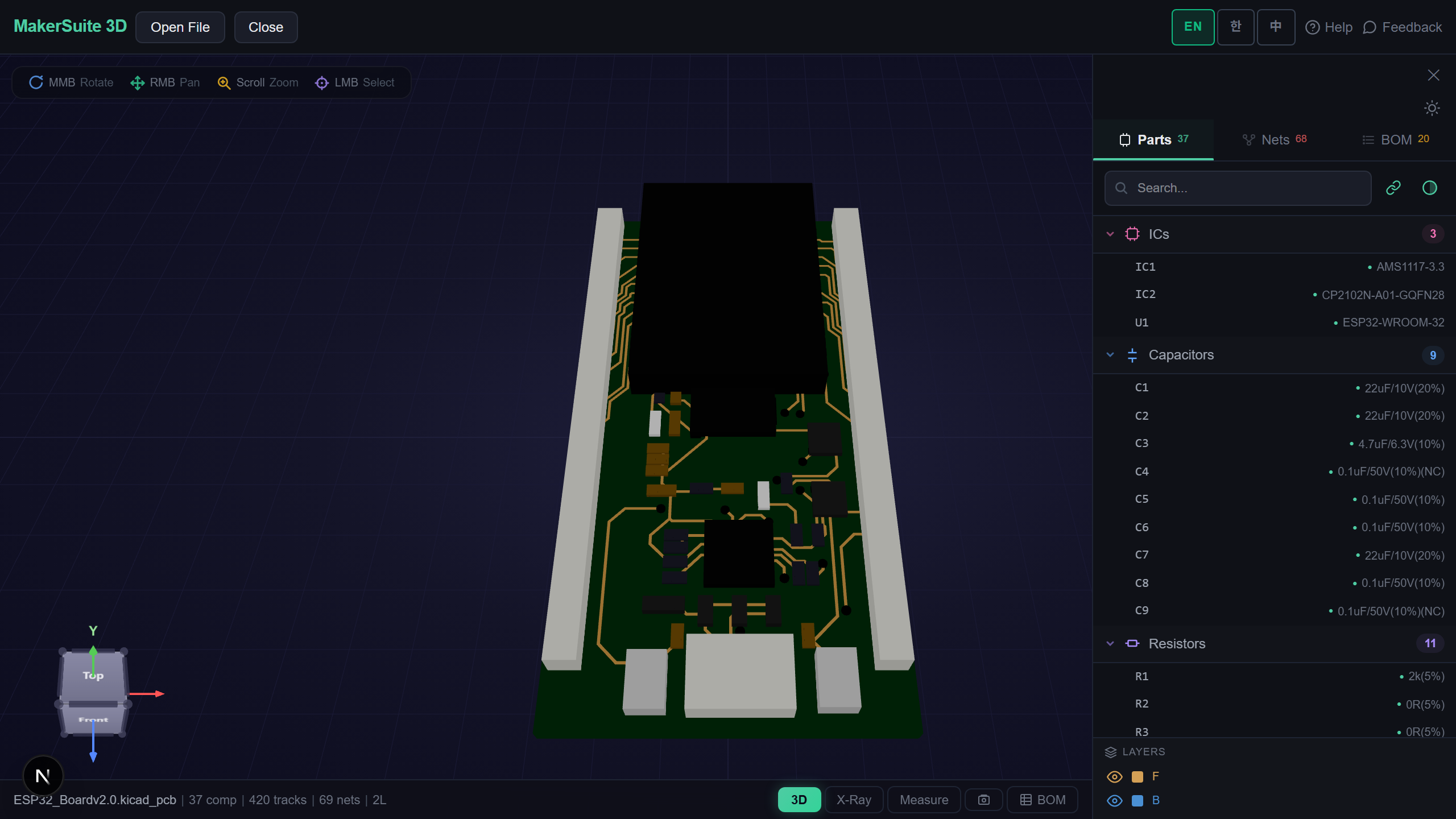
- Open pcbviewer.app — drop your STEP file on MakerSuite 3D's 3D viewer to confirm it parses cleanly. If MakerSuite renders it, the underlying OCCT WASM loader will export GLB cleanly too.
- Pick your tessellation tolerance. For visual web preview (model-viewer, Sketchfab, AR): 0.1mm chord / 0.5 rad angular is fine. For technical inspection (zooming in to verify geometry): 0.01mm chord / 0.2 rad. Smaller produces 5-10× more triangles.
- In MakerSuite, click the Export button and choose GLB. The tool runs OCCT tessellation with default parameters and downloads a single .glb file. For batch conversion or custom parameters, use FreeCAD's Python console with Mesh.export().
- Verify the GLB by loading it in three.js or model-viewer. Look for visible faceting on cylinders (means angular tolerance too loose), missing faces (means STEP healing failed during import), or wrong colors (AP203 STEP without color metadata defaults to gray).
- Optimize the GLB if needed — gltfpack (from glTF-Transform) compresses materials, quantizes positions, applies meshopt or Draco, typically halving file size. For viewer embeds with bandwidth constraints, this matters.
Verify the GLB matches the original STEP visually — drop both into MakerSuite 3D and toggle between them to catch tessellation artifacts before you ship the viewer embed.
Try MakerSuite 3D FreeWhy STEP to GLB Is the Web 3D Bottleneck
Every product page with a 'View in 3D' button, every AR preview on iOS Safari, every Sketchfab embed in a portfolio depends on this conversion. Browser engines do not parse STEP — there is no native B-rep loader in WebGL or WebGPU. The web 3D ecosystem standardized on glTF/GLB in 2016, and CAD tools have spent the last decade catching up. Today the conversion is solved (OCCT WASM works, FreeCAD exports, Fusion 360 exports), but the tessellation parameters are not standardized. Coarse defaults make products look plastic and faceted; fine defaults blow up file size. Picking the right tolerance for your use case is the actual skill, and verifying the result visually is non-negotiable.
Where STEP to GLB Conversions Show Up
- Product configurator — e-commerce site lets customers spin a 3D model of a mechanical part before buying
- AR preview on iOS — model-viewer with USDZ for iOS Safari, GLB for Android Chrome, both generated from the same STEP source
- Documentation embed — technical writer shows assembly views in browser, GLB embedded in HTML via <model-viewer>
- Three.js scene — engineering simulation visualization needs CAD geometry as scene meshes, GLB is the loader-friendly format
- Sketchfab portfolio — designer publishes work for clients to review in browser, Sketchfab requires glTF/GLB upload
Convert in the Browser Without Uploading
STEP files are CAD source — they contain dimensions, tolerances, and design intent. Uploading to a server-side converter sends your engineering IP off-machine. MakerSuite 3D's STEP-to-GLB conversion runs entirely in the browser via OCCT WASM — same algorithm as FreeCAD, just compiled for the web. The STEP file is parsed locally, tessellated locally, and the GLB is offered as a direct download. No server round-trip, no cached copy, no third-party service handles your geometry.
Tessellation Settings That Decide File Size
STEP-to-GLB is governed by two tessellation parameters that nobody talks about: linear deflection (how much a tessellated edge can deviate from the true curve, in millimeters) and angular deflection (how much the surface normal can tilt between adjacent triangles, in radians). Tight values produce smooth curves and giant files; loose values produce faceted geometry and tiny files. The defaults in OCCT are 0.1 mm linear / 0.5 rad angular — fine for inspection, too coarse for product visualization. For a polished marketing render set 0.05 mm / 0.2 rad. For a Figma asset that needs to load fast, 0.2 mm / 0.8 rad keeps file size under 2 MB on a typical part.
The other big lever is Draco compression. Stock GLB stores positions and normals as 32-bit floats; Draco quantizes them to 14 bits or fewer and Huffman-encodes the result. A typical engineering part shrinks 5–10× with Draco, and every modern viewer (model-viewer, three.js, Babylon.js) decodes it transparently. The catch: Draco is patented and subject to license terms — read the license before shipping it in a commercial product. For internal tools and most personal projects, Draco is the right default.
Frequently Asked Questions
What's the difference between glTF and GLB?
Same data, different packaging. glTF 2.0 (JSON + separate .bin buffers + texture files) is human-readable and good for development. GLB packs everything into a single binary blob, which is faster to load and easier to ship to a CDN. For web embeds, GLB is almost always the right choice — single HTTP request, no broken texture references. The Khronos Group standardized both in glTF 2.0 (2017), and every modern web 3D library (three.js, Babylon.js, model-viewer, react-three-fiber) supports both interchangeably.
Why does my converted GLB look faceted on cylinders?
Tessellation tolerance was too loose. Most STEP→GLB converters default to a chord deviation of 0.5mm and angular deviation of 1.0 radians (about 57°), which makes cylinders look like octagons or hexagons. Tighten to 0.1mm chord / 0.3 rad angular for visible curves. The tradeoff is triangle count — going from 0.5mm to 0.1mm typically multiplies triangle count by 5-10×. For web embeds where bandwidth matters, a balanced 0.2mm chord / 0.5 rad angular is usually the sweet spot.
Do colors and materials transfer in STEP to GLB conversion?
Sometimes. STEP AP214 supports per-face colors via PRESENTATION_LAYER_ASSIGNMENT, which OCCT can read and pass through to glTF materials. STEP AP203 doesn't support colors at all, so the GLB defaults to a single gray material. If your STEP file came from SolidWorks or Fusion 360, it's almost certainly AP214 with colors. If it came from older tools or was exported from KiCad/Eagle, it's often AP203 without colors. Check by opening the STEP in a viewer that shows materials — if you see colors there, the GLB will have them too.
How big can a STEP file be before browser conversion fails?
OCCT WASM (occt-import-js) handles STEP files up to roughly 100 MB on a modern laptop without issue. Above that, browser memory limits start mattering — Chrome/Edge cap WASM heap around 4 GB but realistic processing tops out at ~500 MB STEP. For larger CAD assemblies, batch-process locally with FreeCAD's Python API or Fusion 360 CLI. The browser path is best for single parts and small assemblies; large multi-part assemblies are better handled offline and the resulting GLB shipped to the browser as a static asset.
Should I use Draco compression on the GLB?
Usually yes for web delivery. Draco geometry compression typically shrinks GLB files 5-10× (a 2 MB GLB becomes 200-400 KB). Three.js GLTFLoader supports Draco via DRACOLoader; @google/model-viewer supports it natively. Cost: a small CPU hit on decode (typically <100 ms) and a Draco decoder library that adds ~150 KB to your bundle. Worth it for any GLB over 500 KB or any GLB shipped to mobile clients. gltf-transform compresses existing GLBs in one command: gltf-transform draco in.glb out.glb.
Related Articles
Drop your STEP file — convert to GLB in your browser, no upload
Launch 3D Viewer