How to Export a BOM from KiCad (2026 Guide)
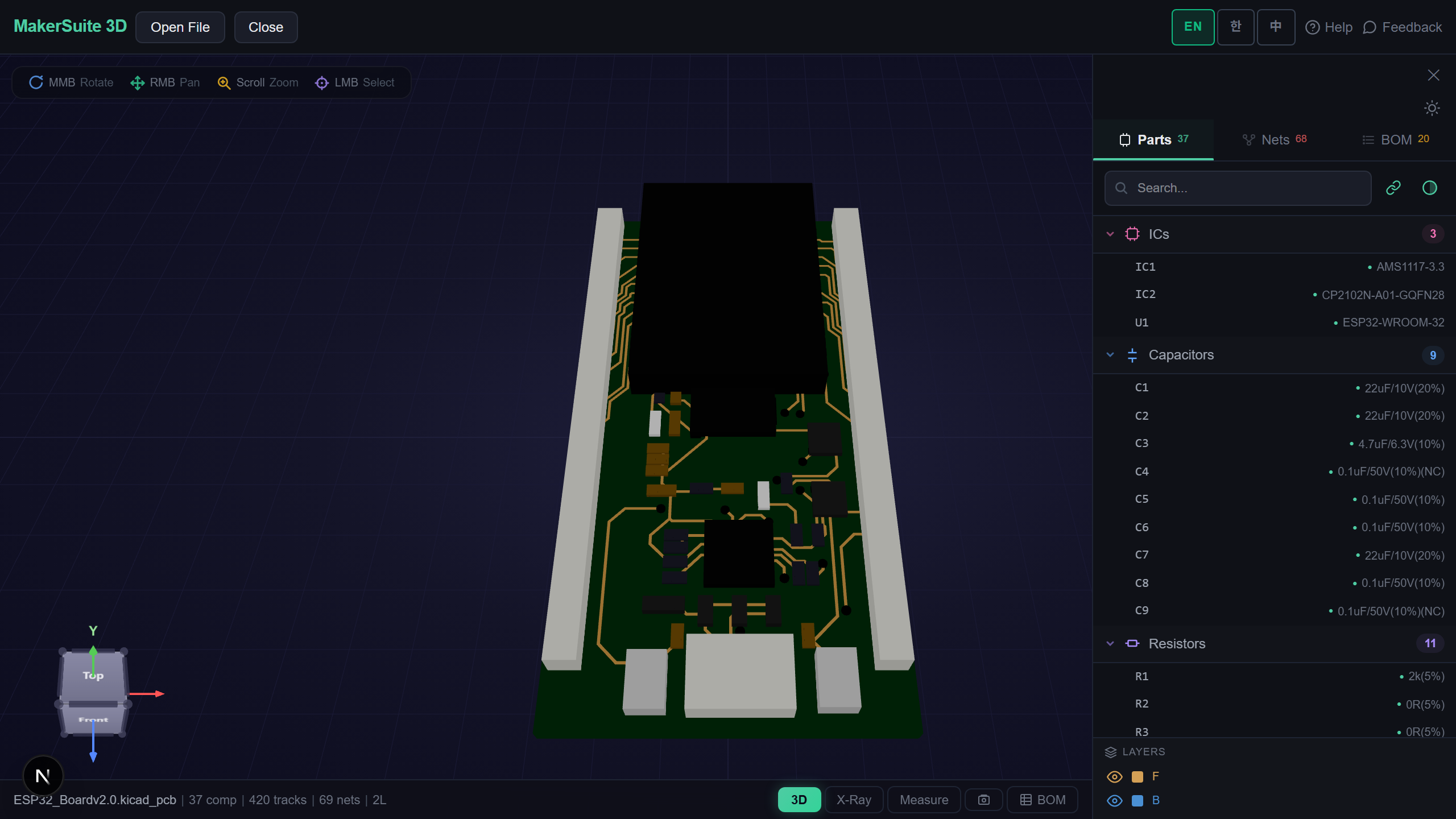
A BOM is only as good as its fields
Your KiCad schematic knows every component, but a fab or assembler needs that list as a clean, priced Bill of Materials — with the right manufacturer part numbers, quantities, and references. Export it sloppily and you get back questions, silent substitutions, or a quote you can't trust. This guide covers KiCad's BOM tool, which symbol fields actually matter, and how to price the whole list across LCSC, DigiKey, and Mouser before you order.
What a KiCad BOM actually contains
A BOM is a grouped list of every component in your design: one row per unique part, with quantity, the reference designators (R1, R2, C5...), value, footprint, and ideally a manufacturer part number (MPN) and supplier part number. KiCad builds it from the schematic's symbol fields, so the quality of your BOM is decided upstream — if your symbols don't carry MPN fields, the export won't either. KiCad 8 generates BOMs directly from the schematic editor with a configurable field layout.
What you can do with the exported BOM
- Auto-extract BOM — Open your board and the BOM is pulled out and grouped automatically.
- Three-supplier pricing — Search LCSC, DigiKey, and Mouser for every line at once.
- Cross-matched MPNs — The same part is matched across suppliers so you compare like for like.
- Optimal-buy view — See the cheapest valid source per part, and the total.
- CSV / XLSX export — Hand a clean, priced sheet to your fab or purchasing.
- No upload — Parsing and pricing run in your browser; the design stays local.
Exporting a BOM from KiCad, step by step
- In KiCad's schematic editor, make sure each symbol has the fields you need — at minimum Value and Footprint, ideally an MPN or LCSC field for sourcing.
- Open Tools → Generate Bill of Materials. Pick a BOM preset (or the JLCPCB plugin if you're assembling there) and export the CSV.
- Review the grouped rows — confirm quantities and references match your board, and that no part is missing an MPN.
- To price it, open your board in the viewer and let it search LCSC, DigiKey, and Mouser for each line.
- Export the priced CSV/XLSX and send it to your fab, assembler, or purchasing — or use the optimal-buy total to place the order.
Price your KiCad BOM across LCSC, DigiKey & Mouser — free.
Try MakerSuite 3D FreeWhy a clean BOM saves a re-quote
Assembly houses quote from your BOM. A missing MPN means they pick a substitute — or stop and ask, delaying the order. A wrong quantity means a shortage on the line. A part with no supplier match means a manual sourcing round at your expense. Getting the BOM right, with real MPNs priced across suppliers, turns a back-and-forth quote into a one-shot order, and often cuts the parts cost by sourcing each line from the cheapest valid supplier.
Who needs this
- Anyone preparing a BOM for JLCPCB or PCBWay turnkey assembly.
- Engineers pricing a design across LCSC, DigiKey, and Mouser before committing.
- Makers handing a clean, priced sheet to a contract assembler.
- Buyers finding a cheaper second source for an expensive or out-of-stock part.
- Anyone sanity-checking a BOM they received before approving the build.
Your design stays private
MakerSuite 3D extracts and prices the BOM entirely in your browser. The board file is never uploaded or stored, so proprietary designs and client work stay on your machine — which matters when you're costing boards under NDA.
Common KiCad BOM mistakes
The biggest is exporting a BOM with no manufacturer part numbers — just values like '10k' and '100nF'. A fab can't source '10k' unambiguously; it needs an MPN or at least a tight spec (package, tolerance, voltage). Add MPN or LCSC fields to your symbols before exporting, or you'll get substitutions you didn't choose.
The second is DNP (do-not-populate) parts leaking into the assembly BOM. KiCad marks DNP components, but if your export preset doesn't filter them, the assembler may place — or quote for — parts you meant to leave off. Confirm DNP handling in your preset, and verify the final grouped count against the board before you order.
Frequently Asked Questions
How do I add MPNs to my BOM?
In the schematic editor, add a custom field (for example 'MPN' or 'LCSC') to each symbol and fill it with the manufacturer or supplier part number. KiCad's BOM export includes whatever symbol fields you configure, so MPNs only appear if they're on the symbols.
What's the best BOM format for JLCPCB?
JLCPCB wants a CSV with Comment (value), Designator (references), Footprint, and an LCSC part number column. The official KiCad JLCPCB plugin produces this directly. For other assemblers, a CSV with MPN, quantity, and references is the safe baseline.
Can I price my BOM automatically?
Yes. Open your board in MakerSuite 3D and it searches LCSC, DigiKey, and Mouser for each line, cross-matches MPNs, and shows the cheapest valid source per part with a total — then exports a priced CSV or XLSX.
How do I exclude DNP parts?
Mark them DNP in the schematic and choose a BOM preset that filters DNP components. If your preset doesn't filter, the export includes them and an assembler may place or quote parts you meant to leave off — always verify the grouped count against the board.
Do I need KiCad installed to view or price the BOM?
To generate the BOM you need KiCad, but to view and price it you don't — MakerSuite 3D extracts and prices a BOM straight from the board file in the browser, with no install and nothing uploaded.
Related Articles
Ready to price your BOM?
Open MakerSuite 3D