PCB Viewer with BOM Management — 3D Board + Supplier Pricing
Why BOM Management Belongs Inside Your PCB Viewer
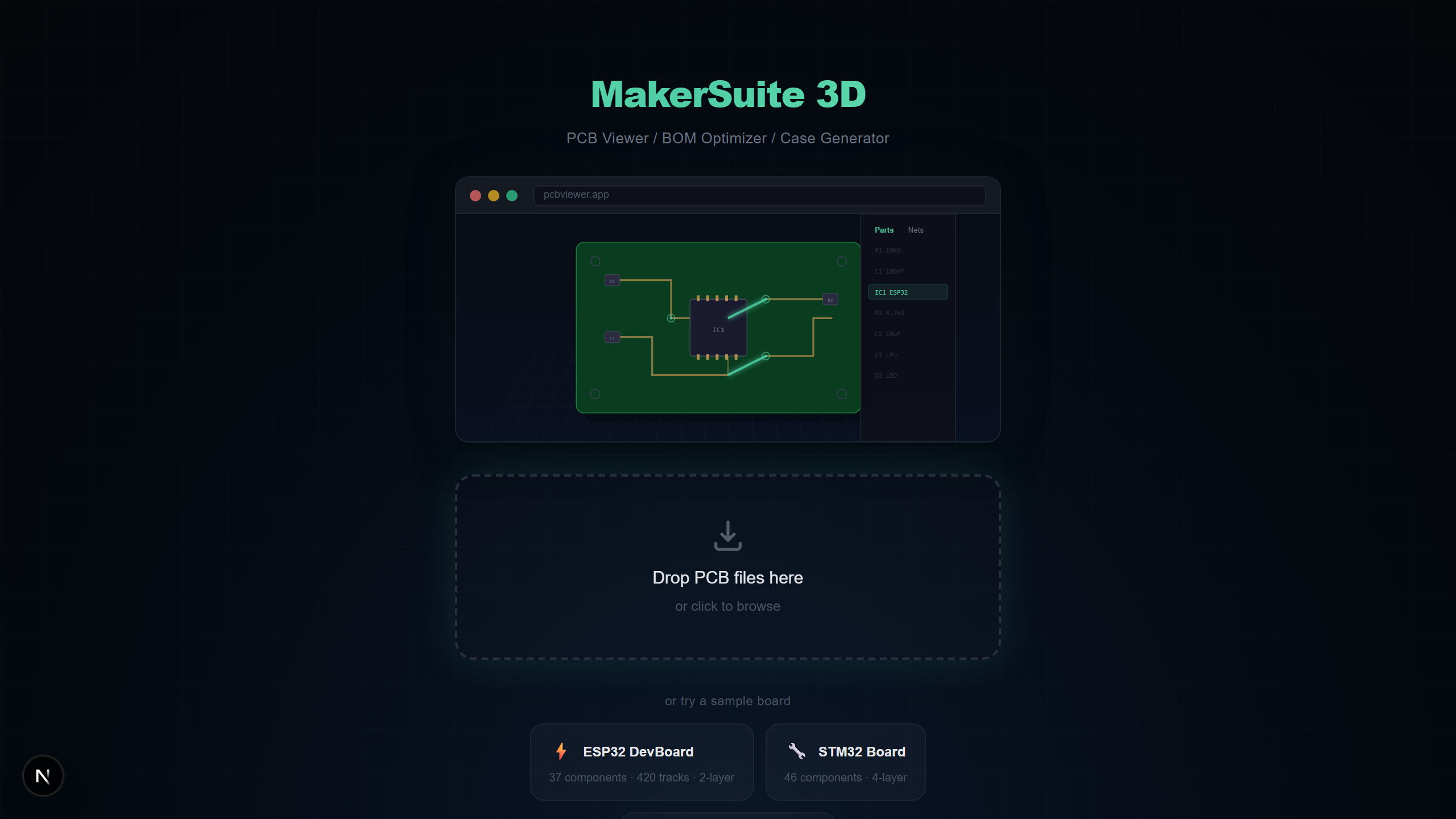
Traditionally, PCB viewing and BOM management are separate workflows. You open your board in a viewer to check the layout, then switch to a spreadsheet to manage the Bill of Materials, then manually search supplier websites for pricing. MakerSuite 3D eliminates this context-switching by integrating BOM extraction, supplier search, and 3D visualization into a single browser tab. Hover over a BOM row and the corresponding component highlights in 3D. Click a supplier result to see pricing and stock. Export everything as a styled XLSX when you are done.
Why Integrated BOM + 3D Matters
Combining BOM management with 3D PCB visualization solves problems that neither tool can solve alone:
- Visual component verification — Hover over a BOM row to instantly highlight the component in 3D, confirming it is the right part in the right location
- Footprint-to-price mapping — See the physical size of a component in 3D while checking if cheaper alternatives exist in the same footprint
- Missing component detection — Spot components that appear in the layout but are missing from the BOM, or vice versa
- Assembly cost estimation — View the total project cost breakdown with a pie chart showing which component categories consume the most budget
How BOM Extraction Works
MakerSuite 3D automatically extracts BOM data from your PCB file during parsing. Here is the complete workflow:
- Upload your PCB file to pcbviewer.app (any of the 9 supported PCB formats)
- The parser extracts every component with its reference designator (R1, C5, U3), value (10k, 100nF, STM32F4), and footprint (0603, LQFP-64)
- Open the BOM panel — components are automatically grouped by value and footprint, with quantity counts
- Click the search button on any BOM row to simultaneously query LCSC, DigiKey, and Mouser for pricing and availability
- Results appear inline with prices, stock levels, datasheet links, and thumbnail images. The cheapest option is marked with a green badge.
Supported Suppliers
MakerSuite 3D searches three major electronic component distributors, covering both budget and premium supply chains:
- LCSC / JLCPCB — Best prices for JLCPCB SMT assembly. Huge catalog of SMD components with LCSC part numbers. Ideal for low-cost prototyping.
- DigiKey — Premium selection with detailed specifications, parametric search, and PDF datasheets. Fast shipping for urgent orders.
- Mouser — Manufacturer-direct pricing with wide inventory. Good for production quantities and hard-to-find components.
Want to try it yourself? Upload your PCB file now.
Try MakerSuite 3D FreeCross-Supplier MPN Matching
One of the most powerful features in MakerSuite 3D's BOM system is cross-supplier matching. When LCSC returns a result with a manufacturer part number (MPN) like TPS63020DSJR, MakerSuite 3D automatically searches DigiKey and Mouser for that exact MPN. This passive propagation ensures you compare identical components across all three vendors — not just similar-sounding parts. The matching uses a queue-based system with 800ms delays to respect API rate limits.
BOM Panel Features
- Auto-grouping — Components with the same value and footprint are grouped into a single BOM row with a quantity count
- 3D Hover Highlight — Hover over any BOM row and the corresponding components glow in the 3D view — instantly locate any part on the board
- Cost Pie Chart — Visual breakdown of your project cost by component category (ICs, capacitors, resistors, connectors, etc.)
- Stock Alerts — Real-time inventory levels from all three suppliers. Spot out-of-stock components before placing your order.
- Datasheet Links — Direct links to manufacturer PDF datasheets from DigiKey and Mouser results
- BOM Diff — Compare two versions of a BOM to see added, removed, or changed components between design revisions
BOM Export Options
Export your BOM as a plain CSV for spreadsheet import, or as a styled XLSX with color-coded supplier pricing, stock availability, optimal purchase recommendations (green checkmark badges), and clickable datasheet hyperlinks. The XLSX format includes formatted headers, column widths, and conditional formatting — ready to share with procurement teams.
Who Benefits from BOM + 3D Integration?
- Hardware startups estimating prototype costs before committing to a PCB design
- Procurement engineers building purchase orders with optimized supplier selection across LCSC, DigiKey, and Mouser
- Freelance PCB designers delivering complete BOM cost reports to clients alongside 3D board visualizations
- Manufacturing teams verifying that BOM data matches the physical board layout before starting assembly
Frequently Asked Questions
What is a PCB BOM viewer?
A PCB BOM viewer extracts the Bill of Materials from your PCB design file and displays it alongside the 3D board view. MakerSuite 3D automatically groups components by value and footprint, and lets you hover over BOM rows to highlight the corresponding components in 3D.
Can I search component prices from the BOM viewer?
Yes. MakerSuite 3D searches LCSC, DigiKey, and Mouser simultaneously for every component in your BOM. Results include real-time pricing, stock availability, datasheet links, and manufacturer part numbers.
What is cross-supplier matching?
When one supplier returns a manufacturer part number (MPN) for a component, MakerSuite 3D automatically queries the other two suppliers with that exact MPN. This ensures you compare identical parts across all vendors for accurate price comparison.
Can I export the BOM with supplier pricing?
Yes. You can export your BOM as CSV or styled XLSX. The XLSX export includes color-coded pricing from all three suppliers, stock levels, datasheet links, and a green checkmark indicating the optimal (cheapest) source for each component.
Which PCB formats support BOM extraction?
All 9 PCB formats supported by MakerSuite 3D extract BOM data: KiCad (.kicad_pcb), Gerber (with .csv BOM), Eagle (.brd), EasyEDA (.json), Altium (.PcbDoc), PADS (binary or ASCII .pcb/.asc), P-CAD and Protel 99 ASCII (.pcb), and Cadence Allegro (.brd). Components are automatically extracted with reference designators, values, and footprints.
Related Articles
View your PCB with integrated BOM management
Open MakerSuite 3D