Gerber를 PDF로 변환하는 법 — PCB 문서화 워크플로우
왜 Gerber → PDF가 여전히 중요한가
Gerber RS-274X는 범용 PCB 팹 핸드오프 포맷 — 지구상 모든 팹업체가 받음. 하지만 Gerber는 레이저 플로터와 머신용 CAM 포맷, 사람용 아님. PDF는 하드웨어 리뷰어에게 보내거나 팹 승인 메일에 첨부하거나 1:1 스케일로 인쇄해서 솔더 마스크 개구부를 실물 부품과 검증하기 위한 것. Gerber → PDF 변환은 레이어 아트워크를 벡터 PDF로 보존(레이어당 한 페이지 또는 모든 레이어 적층) — 어떤 스케일에서도 깔끔하게 인쇄되고 Acrobat이나 Illustrator에서 편집 가능. 이 글은 네 가지 실제 변환 경로 — KiCad 내장 plot-to-PDF·gerbv 커맨드라인·온라인 뷰어·MakerSuite 3D — 와 팀을 함정에 빠뜨리는 함정(라인 폭 인플레이션·컬러 매핑·드릴 정렬)을 다룸.
Gerber와 PDF가 실제로 저장하는 것
Gerber RS-274X(Ucamco 스펙)는 PCB 레이어 아트워크 설명하는 2D 벡터 포맷 — 어퍼처(셰이프)·드로우(라인)·플래시(단일 셰이프 배치)·폴리곤 영역. 레이어당 Gerber 파일 하나(상단 구리·하단 구리·상단 마스크·하단 마스크·상단 실크·하단 실크·보드 외곽선·Excellon 드릴 파일). PDF는 텍스트·이미지·벡터 그래픽 있는 페이지 벡터 문서 포맷 — Gerber 아트워크를 페이지마다 채워진 벡터 영역으로 표현하기 충분히 유연. 변환은 Gerber의 어퍼처와 드로우를 가져다 래스터화하거나 벡터화해서 채워진 패스로 PDF에 작성. 잘 하면 정확한 지오메트리 보존, 못 하면 라인 폭 잘못 — Gerber의 스트로크된 드로우가 폭 인식 렌더링 필요한 걸 컨버터가 잊어버림.
각 변환 경로가 처리하는 것
- KiCad PCB Editor — File > Plot, 출력 포맷 PDF, 레이어당 PDF 또는 모든 레이어 단일 PDF. 라인 폭·드릴 마크·컴포넌트 외곽선 정확히 보존. .kicad_pcb 소스 있으면 베스트.
- gerbv 커맨드라인 — gerbv -x pdf -o out.pdf top_copper.gbr bottom_copper.gbr drill.drl. 오픈소스(gEDA 프로젝트), 어떤 소스 CAD의 Gerber든 동작. Linux/macOS 네이티브, Windows는 WSL.
- GerbView(무료 Ucamco 뷰어) — File > Print to PDF. Gerber 스펙 저자의 레퍼런스 구현이라 렌더링이 캐노니컬. Windows 전용.
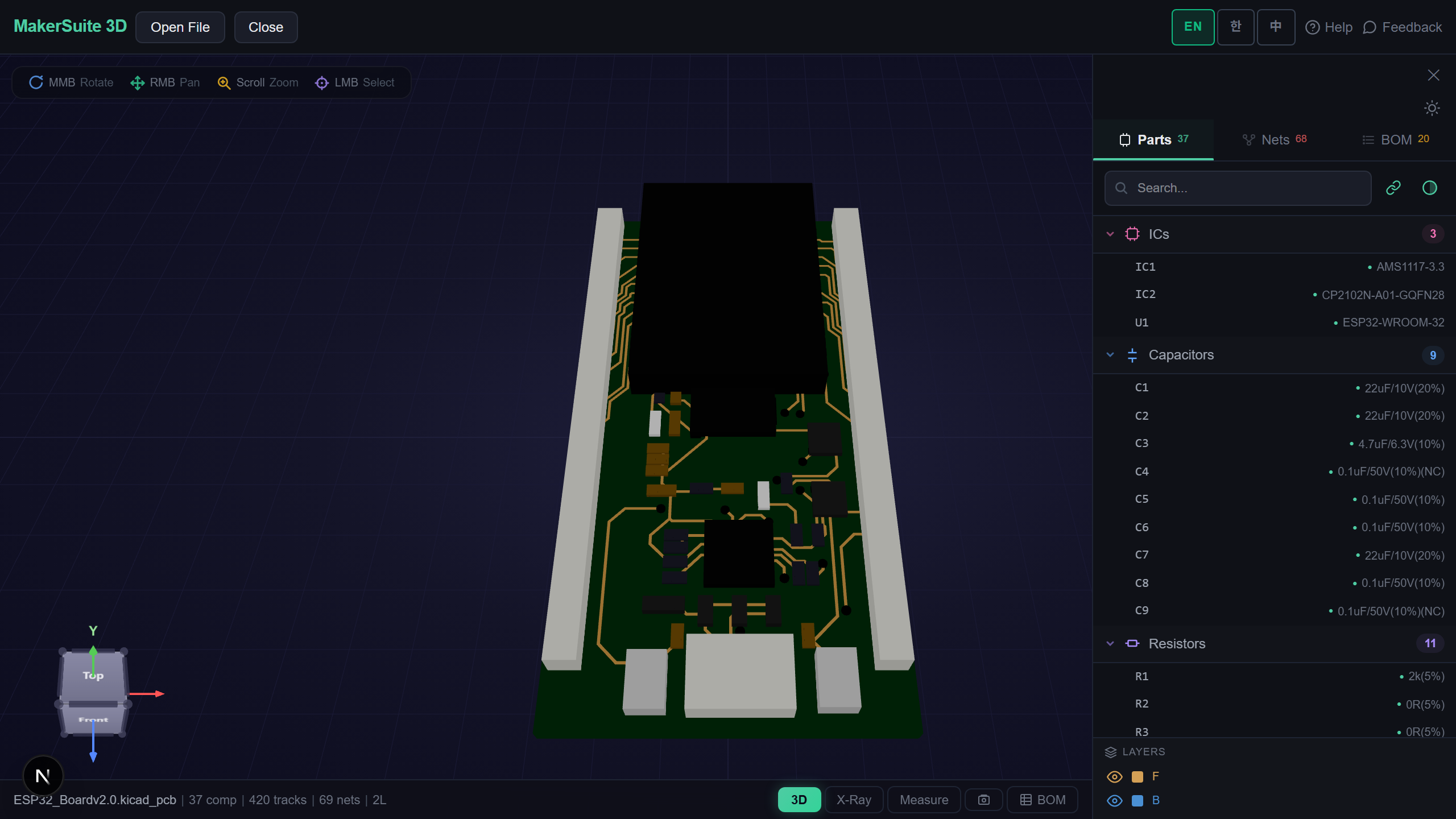
- MakerSuite 3D — Gerber zip 드롭, 브라우저에서 Print/Save 클릭, Print to PDF 선택. 3D 뷰 구동하는 같은 파서로 브라우저 사이드 렌더링, 레이어 정렬 자동.
- 레이어 선택 — 디자인 리뷰는 보통 상단 구리 + 상단 실크 + 외곽선 한 페이지, 하단 구리 + 하단 실크 + 외곽선 다른 페이지. 팹 승인은 사인오프용 레이어 개별.
- 스케일과 해상도 — 솔더된 부품에 인쇄물 대고 물리 부품 핏멘트 검증할 때 1:1(100% 스케일) 인쇄. PDF는 벡터라 어떤 스케일에서도 선명, 단 인쇄 다이얼로그가 자동 fit-to-page 안 해야 함.
다섯 단계로 Gerber → PDF
- Open pcbviewer.app — Gerber zip을 MakerSuite 3D에 먼저 드롭. 모든 레이어 깨끗하게 파싱되고 정렬 맞는지 확인. MakerSuite가 보드 렌더하면 PDF도 함.
- 레이어 가시성 토글 — PDF에 안 들어갈 레이어 끄기. 일반 디자인 리뷰: 상단 구리·상단 실크·상단 마스크·보드 외곽선·드릴. 하단 레이어와 내부 플레인 끄기.
- 브라우저 인쇄 다이얼로그(Ctrl+P / Cmd+P), Save as PDF를 목적지로 선택. 스케일 100%(fit to page 아님 — 그건 1:1 검증 깸). 풀 블리드는 마진 없음.
- 레이어 분리 PDF(팹 승인 워크플로우)는 KiCad나 gerbv 사용. KiCad의 File > Plot이 일관된 라인 가중치로 레이어당 PDF 하나 작성 — 팹 사인오프 문서 표준.
- PDF를 화면과 종이에서 검증. 100% 스케일 인쇄, 실제 커넥터나 BGA를 풋프린트 위에 올리고 패드 정렬 확인. 500달러 팹 런 전에 솔더 마스크 개구부 에러 잡음.
PDF export 전에 Gerber 레이어 시각 점검 — Gerber zip을 MakerSuite 3D에 드롭하고 레이어 토글, 이슈가 PDF 승인 문서에 들어가기 전에 잡기.
MakerSuite 3D 무료로 써보기왜 Gerber → PDF가 모든 PCB 워크플로우에 있는가
PCB 팹은 사인된 PDF 승인으로 돌아감 — 팹이 레이어 플롯 스택을 보내고, 엔지니어가 각각 사인하고, 제조 시작. 이 워크플로우는 1990년대부터 안 변했고 사라지지 않을 것, PDF가 보편 가독·아카이브·사인 가능하니까. 내부적으로 디자인 리뷰도 같은 식: 하드웨어 리드가 보드 PDF 리뷰, 이슈 마크업, 다시 핸드오프. Gerber 단독은 리뷰엔 너무 저레벨, KiCad/Altium 네이티브 파일은 모두가 소스 CAD 설치해야 함. PDF가 링구아 프랑카, Gerber → PDF 정확히(맞는 라인 가중치·맞는 컬러·맞는 정렬) 변환하는 게 승인 루프 빠르게 유지하는 비결. 나쁜 PDF(72DPI 래스터·오프 스케일·레이어 누락)는 팹 일정에 며칠 추가하는 메일 라운드트립 트리거.
Gerber → PDF가 정답인 경우
- 팹 승인 — 팹업체가 툴링 전 사인오프 위해 레이어 플롯을 PDF로 반환, 모든 PCB 샵이 이 루프 돌림
- 디자인 리뷰 — 하드웨어 리드가 KiCad/Altium 설치 없이 PDF에서 레이어별 마크업 리뷰
- 1:1 핏멘트 체크 — 상단 구리 + 상단 실크 100% 인쇄, 솔더된 커넥터나 BGA 위에 올려서 패드 정렬 검증
- 아카이브 산출물 — 프로젝트 핸드오프 번들이 Gerber zip + 사인된 PDF를 사람 가독 기록으로 포함
- 벤더 RFQ — 팹 작업 견적엔 보드 이미지 필요, PDF는 모든 메일 클라이언트와 조달 포털에서 동작하는 보편 첨부
브라우저에서 업로드 없이 변환
Gerber 파일은 PCB IP. 온라인 Gerber 뷰어(Gerblook·PCBWay 뷰어·EasyEDA 온라인)는 PDF 생성하지만 Gerber zip을 서버에 올려야 하고 거기서 캐시됨. NDA 보드나 미공개 제품엔 비스타터. MakerSuite 3D는 Gerber 파싱 전부 브라우저에서 JS로, 브라우저 네이티브 인쇄 다이얼로그가 PDF 생성을 로컬 처리 — 서버·업로드·제3자 사본 없음. PDF 생성·저장·신뢰하는 채널로 공유.
벡터 vs 래스터 — 승인 PDF엔 둘 다 필요
대부분의 싸구려 컨버터는 래스터화 PDF를 출력합니다 — Gerber를 300 DPI 비트맵으로 평탄화하고 PDF 래퍼에 임베드하고 출하. 빠른 시각 리뷰엔 괜찮지만 1:1 핏멘트 체크엔 쓸모없습니다. 거기서 상단 구리 레이어를 100% 스케일로 인쇄하고 물리 커넥터에 대보거든요. 래스터화 PDF는 모든 줌 단계에서 정밀도를 잃습니다. 옳은 도구 경로는 gerbv → 벡터 PDF나 KiCad → Plot to PDF, 둘 다 원래 형상 외곽선을 PDF 벡터 명령으로 보존합니다. PDF는 어떤 스케일에서도 깔끔히 인쇄되고 Acrobat 1000% 줌에서도 읽히게 남습니다.
레이어 컬러 매핑이 다른 반복 함정입니다. 팹업체는 특정 색상 컨벤션을 기대합니다 — 상단 구리 빨강, 하단 구리 파랑, 실크 흰색, 마스크 초록 또는 투명. 일반 Gerber-to-PDF 컨버터는 종종 팹 검사관이 못 읽는 기본 무지개 팔레트를 출력합니다. KiCad의 plot 다이얼로그는 export 전 레이어별 색상 설정을 허용하고 표준 색상 셋은 IPC-D-356 reference에 문서화돼 있습니다. 그걸 쓰세요. 올바르게 컬러된 PDF는 첫 리뷰에 승인되고 무지개색 PDF는 혼란스러운 질문과 함께 돌아옵니다.
자주 묻는 질문
Can I print a Gerber PDF at 1:1 scale?
Yes, and you should — for fitment checks, this is the whole point. Open the PDF in any reader, hit Print, set Scale to 100% (Acrobat: Actual Size; browser: 100%, NOT 'Fit to Page'). Margin settings should be None or Custom: 0 to avoid auto-shrinking. Print on a normal sheet, then hold a real connector or BGA over the printed footprint — pad alignment will match exactly. Off-by-1mm errors caught here cost you a printer cartridge; off-by-1mm errors caught at fab cost a respin.
Why does my Gerber PDF have wrong line widths?
Bad rasterizer. Gerber's draws are stroked lines with a defined aperture (width). A correct converter renders the line as a filled path with the aperture's geometry. A naive converter rasterizes to a hairline, ignoring the aperture, which makes every trace look as thin as the printer's minimum stroke width. Use KiCad's File > Plot > PDF or gerbv's PDF export — both honor aperture widths correctly. Avoid converters that show 'lines' in the output preview; you want filled regions.
Do I need a PDF for every layer or all layers on one page?
Both, for different audiences. Fab approval workflow uses one PDF per layer — top copper, bottom copper, top mask, bottom mask, top silk, bottom silk, plus drill — because the fabricator signs off each layer separately. Internal design review uses combined views — top copper + top silk + outline on one page, bottom equivalent on another — because the engineer needs to see the relationship between layers, not isolated artwork. KiCad's Plot dialog has checkboxes for both modes.
How do I add color to a Gerber PDF?
Color the layers when generating the PDF. KiCad's Plot dialog lets you set a color per layer (red top copper, blue bottom copper, white silk on dark background — the standard 'PCB review' look). gerbv stores layer colors in its UI; print to PDF preserves them. Black-on-white is the canonical fab approval look (matches a print plot). Dark background with bright traces is the canonical screen review look. Pick whichever matches your audience's expectation; your team has a convention even if nobody wrote it down.
Should I include the drill file in the PDF?
Yes, as a separate page or merged into a copper layer view. Drills go on the same coordinate system as copper, but Excellon (.drl) is a separate file from Gerber. Most converters merge the drill hits onto a designated layer — typically rendered as small circles on the copper PDF — which lets the reviewer see drill alignment relative to pads. KiCad's Plot dialog has a 'Plot drill marks' checkbox that overlays drill positions onto each layer PDF.
관련 글
Gerber zip 드롭 — 브라우저에서 PDF 생성, 업로드 없음
PCB 뷰어 열기