OBJ를 STL로 변환하는 법 — 무료 온라인 메쉬 변환
OBJ → STL은 쉬운 변환
OBJ와 STL 둘 다 곡선 없고 파라메트릭 히스토리 없는 삼각형 메쉬 포맷. 변환은 직관적: OBJ에서 삼각형 읽고 STL에 삼각형 씀. 지오메트리 무손실 — OBJ의 모든 삼각형이 STL의 삼각형 하나로 — 하지만 OBJ 고유 항목은 사라짐. UV 텍스처 좌표·머티리얼 할당(.mtl 파일)·정점별 컬러·스무딩 그룹·이름 있는 오브젝트 계층 모두 떨어짐, STL이 이걸 안 저장하니까. 3D 프린팅엔 OK, 슬라이서는 워터타이트 지오메트리만 필요. 시각화나 게임 에셋엔 다운그레이드. 이 글은 각 포맷이 이기는 시점, 잃는 게 뭔지, 의심스러운 무료 컨버터 사이트에 업로드 안 하고 변환하는 법을 다룹니다.
OBJ와 STL이 실제로 저장하는 것
OBJ는 ASCII 텍스트 포맷, Wavefront Technologies(1990년대)에서. 정점(v 라인)·텍스처 좌표(vt)·노멀(vn)·면(f 라인이 셋 다 인덱싱) 저장. 어떤 정점 수 다각형이든 지원(삼각형·쿼드·n-곤), 머티리얼은 별도 .mtl 파일로 페어링. STL은 더 단순한 포맷, 1989년 3D Systems의 SLA 프린터용. ASCII 또는 바이너리(삼각형당 50바이트)로 정점 셋과 면 노멀만 저장. 머티리얼·텍스처·면별 노멀 외 노멀·정점 공유·계층 개념 없음. OBJ → STL 변환은 쿼드/n-곤을 삼각화하고 삼각형 외 모든 걸 버리는 일.
변환이 보존하는 것과 잃는 것
- 지오메트리 보존 — OBJ의 모든 정점과 면이 STL에 도달. 쿼드와 n-곤은 자동 삼각화(대부분 컨버터가 ear-clipping이나 fan triangulation 사용).
- 머티리얼 손실 — STL은 머티리얼 개념 없음. .mtl 파일 완전 무시. OBJ가 컬러 영역 위해 여러 머티리얼 썼다면 STL은 단일 무색 메쉬로 합쳐짐.
- 텍스처 손실 — UV 좌표·텍스처 이미지 참조 모두 사라짐. STL은 지오메트리 전용.
- 계층 평탄화 — OBJ의 이름 있는 오브젝트 그룹(o·g 라인)이 바이너리 STL에선 한 메쉬로 합쳐짐. ASCII STL은 'solid 이름' 지원하지만 실제로 파일당 하나뿐.
- 파일 크기 — 같은 지오메트리의 바이너리 STL이 ASCII OBJ보다 보통 작음(50바이트/삼각형 vs ~100자/삼각형), 둘 다 같은 삼각형 수 저장해도.
- 역방향? — STL → OBJ는 깔끔하지만 머티리얼은 안 돌아옴. OBJ → STL → OBJ 라운드트립은 무손실 아님: 텍스처 OBJ로 시작해서 무색 OBJ로 끝.
다섯 단계로 OBJ → STL
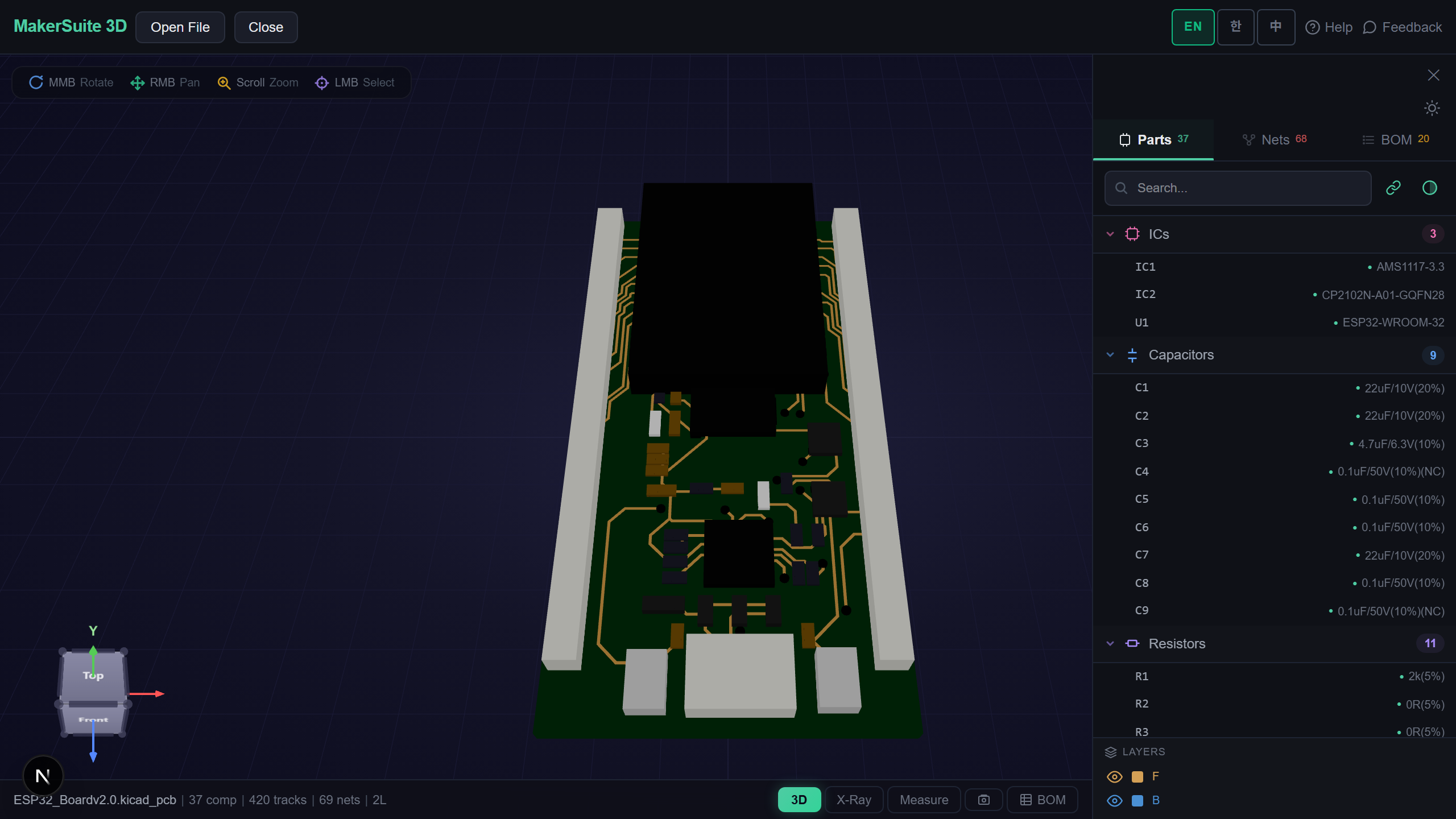
- Open pcbviewer.app — .obj 파일을 MakerSuite 3D 3D 뷰어에 드롭해서 지오메트리 점검. 모델이 기대대로인지 확인, 누락 면이나 뒤집힌 노멀 없는지.
- Export 클릭, STL 선택. 도구가 비-삼각형 면을 삼각화하고 바이너리 STL 작성, 다운로드 제공. 일반 메쉬는 밀리초 단위로 변환 완료.
- 배치 변환은 Blender 커맨드라인: blender --background --python-expr "import bpy; bpy.ops.wm.obj_import(filepath='in.obj'); bpy.ops.wm.stl_export(filepath='out.stl')" 셸 루프 래핑.
- STL 검증 — MakerSuite 3D에 다시 열기. 삼각형 수가 기대치 매치(degenerate 손실 없음), 바운딩 박스가 OBJ와 동일, 프린트 의도면 워터타이트인지 확인.
- 3D 프린팅 목적이면 슬라이서 보내기 전 non-manifold 체크 실행. 컬러 OBJ에서 온 STL은 보통 지오메트리 손실 없지만 원본 OBJ가 견뎠던 기존 non-manifold 엣지를 노출시킬 수 있음.
OBJ와 변환된 STL을 MakerSuite 3D에 같이 드롭 — 시각 diff로 슬라이서 보내기 전 삼각화가 깬 게 없는지 확인.
MakerSuite 3D 무료로 써보기OBJ vs STL 언제 어떤 걸
3D 프린팅엔 STL 승 — 모든 슬라이서(Cura·PrusaSlicer·Bambu Studio·Lychee)가 STL을 레퍼런스 포맷으로 취급, 바이너리 STL은 컴팩트하고 파싱 빠름. CAD-CAM 핸드오프도 STL 승, CAM 소프트웨어가 추가 메타데이터 없는 워터타이트 삼각형 기대. OBJ는 시각 작업 전부에서 승: 게임 에셋 파이프라인·아키비즈 렌더·포토그래메트리 출력·스컬프팅 도구(ZBrush·Blender) 모두 OBJ에서 텍스처와 머티리얼 보존. 변환은 손실 없이 한 방향 — OBJ → STL은 머티리얼 떨어뜨림, STL → OBJ는 머티리얼 추가 안 함. 텍스처 지원 가능성 있으면 OBJ, 지오메트리만 필요하고 최대 호환성 원하면 STL.
OBJ → STL이 정답인 경우
- 3D 프린트 가는 스컬프트 모델 — ZBrush/Blender가 OBJ export, 슬라이서는 STL 원함, 단순 무손실 지오메트리 핸드오프
- 포토그래메트리 파이프라인 — RealityCapture/Meshroom이 텍스처 있는 OBJ 출력, CNC나 분석엔 지오메트리만 필요
- 게임 에셋을 3D 프린트 — OBJ 포맷 캐릭터/소품 에셋, 팬이 실물 인쇄 원함, 머티리얼 무관
- CAD 플러그인 출력 — 옛 CAD 도구가 OBJ export, 다운스트림 도구는 STL 기대, 변환이 갭 메움
- 에셋 파이프라인 정리 — 아카이브 전 머티리얼 스트립, 더 작은 STL이 캐노니컬 '지오메트리만' 포맷
브라우저에서 업로드 없이 변환
온라인 OBJ-to-STL 컨버터(Convertio·AnyConv·FreeOnlineConverter)는 파일을 서버에 올려야 함. NDA 작업·스캔된 얼굴(의료/치과)·미공개 제품 디자인엔 즉시 비스타터. MakerSuite 3D는 OBJ 파싱과 STL export 전부 브라우저에서 JS로 — 서버·업로드·다른 사람 디스크의 캐시 사본 없음. 파일 열기·export·저장·끝. 지오메트리는 머신에 남음.
STL이 잘못된 선택일 때
다운스트림 도구가 OBJ를 읽을 수 있다면 OBJ를 유지하세요. STL은 1987년에 stereolithography 용으로 설계됐고 삼각형당 세 개의 정점을 공유 없이 저장합니다 — 즉, quad 하나가 공유된 네 정점 대신 여섯 정점을 가진 두 삼각형이 됩니다. 빽빽한 메시의 경우 OBJ 파일은 30-50% 작은데, OBJ는 정점 리스트를 저장하고 삼각형에서 참조하기 때문입니다. 게임 엔진, 웹 뷰어, 대부분의 모던 시각화 도구가 OBJ를 네이티브로 다룹니다. STL로의 푸시는 거의 항상 더 잘 알지 못하는 슬라이서나 CAM 도구에 의해 강요됩니다.
텍스처 좌표가 가장 그리워지는 희생자입니다. OBJ가 .mtl 파일과 텍스처 이미지와 함께 출하된다면 그것들은 시각화엔 필수지만 STL엔 보이지 않습니다. 변환 후 모델은 그저 회색 지오메트리입니다. OBJ-to-STL 파이프라인이 3D 프린팅용이라면 괜찮습니다 — 프린터는 텍스처를 신경 쓰지 않습니다. 시각화나 렌더링용이라면 멈추고 3MF(머티리얼 보존)나 GLB(텍스처 임베드)가 더 나은 타깃 포맷인지 재고하세요.
자주 묻는 질문
Will my OBJ textures show up in the STL?
No. STL has no concept of textures, materials, or UV coordinates — it stores triangle geometry only. The .mtl file your OBJ references and any .png/.jpg textures get ignored entirely during conversion. If color and texture matter (game asset, archviz render, photogrammetry handoff), keep the OBJ or convert to a format that supports materials like FBX, glTF, or 3MF. STL is the right choice when you only need geometry — 3D printing, CNC, mesh analysis, finite element prep.
Why does my OBJ have quads but STL only has triangles?
STL was specified for stereolithography in 1989 with triangles only — no quads, no n-gons. OBJ supports faces of any vertex count. During conversion, every quad in your OBJ gets split into two triangles, every n-gon gets fan-triangulated. Most converters use ear-clipping for non-convex polygons. The geometry stays the same, but the triangle count roughly doubles for a quad-heavy model. This is fine for printing — slicers triangulate internally anyway — but causes confusion when you compare 'face count' between the OBJ and the STL.
ASCII STL or binary STL — which should I use?
Binary STL almost always. Binary stores 50 bytes per triangle (12 bytes for the normal, 36 bytes for three vertices, 2 bytes attribute byte count), which is roughly 4× smaller than ASCII for the same model. ASCII STL is human-readable but slow to parse and bloated on disk. Slicers, CAD software, and CAM tools handle binary STL natively. The only reason to write ASCII is for debugging or version control diffability — and even then, OBJ is a better choice for diffability since it's already text.
Will my OBJ be watertight after conversion?
Watertight or not is a property of the source geometry, not the conversion. If the OBJ had non-manifold edges, holes, or T-junctions, the STL inherits all of them. The conversion is geometric — it preserves vertices and faces verbatim — so problems in the OBJ become problems in the STL. Run a non-manifold check on the OBJ before converting if you're going to 3D print. MakerSuite 3D's mesh repair detects non-manifold edges, flipped normals, and holes; fix them in the OBJ first, then convert to STL.
Can I convert OBJ to STL in batch?
Yes, several ways. (1) Blender command line: blender --background --python-expr "import bpy; bpy.ops.wm.obj_import(filepath='in.obj'); bpy.ops.wm.stl_export(filepath='out.stl')" wrapped in a shell loop. (2) MeshLab CLI: meshlabserver -i in.obj -o out.stl with a script. (3) Custom Python with trimesh library: import trimesh; mesh = trimesh.load('in.obj'); mesh.export('out.stl'). For one-off conversions or interactive use, MakerSuite 3D handles single files in the browser. For 100+ files, write a shell script with one of the CLI tools.
관련 글
OBJ 파일 드롭 — 브라우저에서 STL로 변환, 업로드 없음
3D 뷰어 열기