PCB Viewer for iPad and Tablets — Mobile Browser-Based
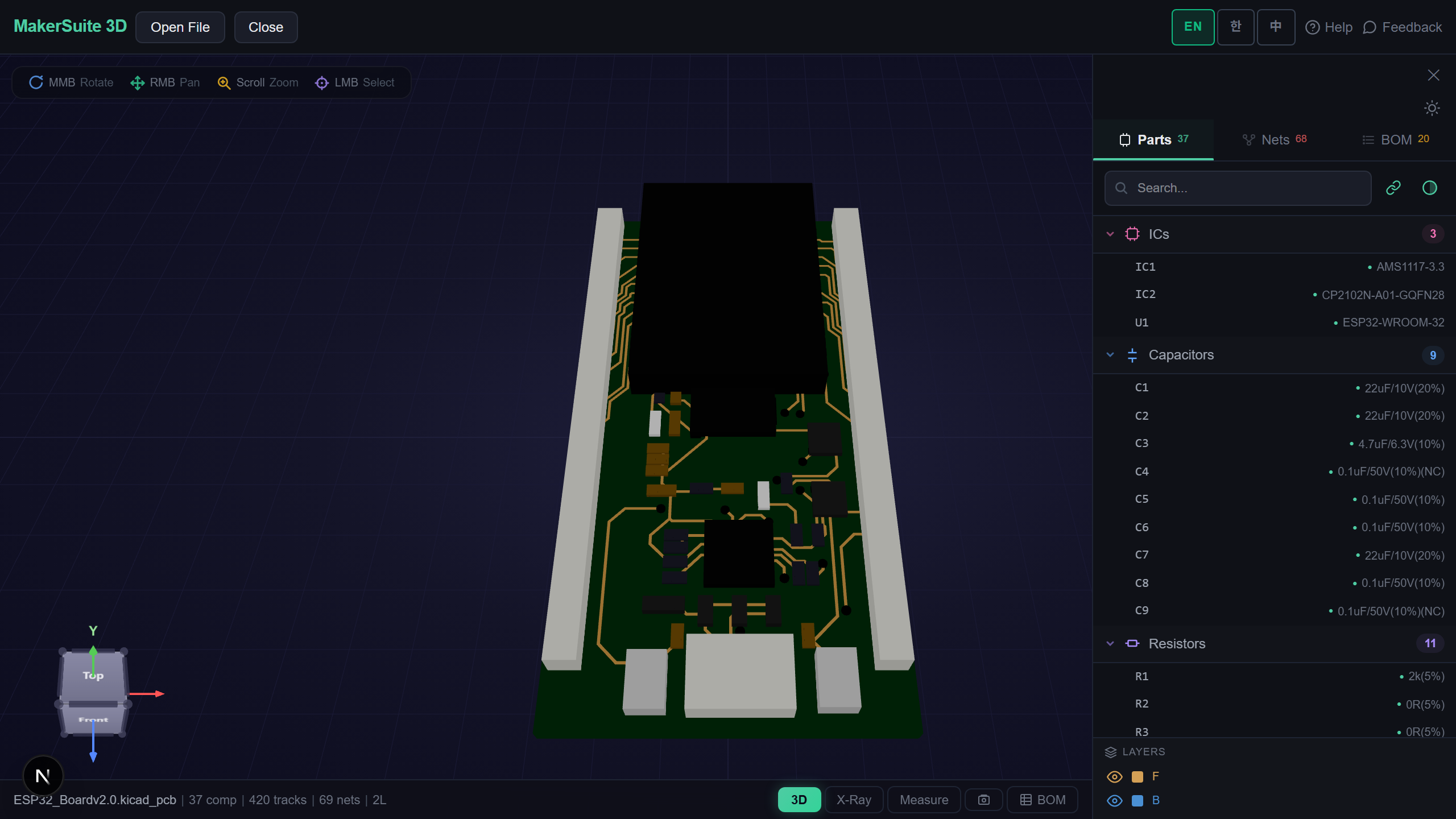
PCB Review Without a Laptop
Engineering work has shifted to tablets for review, customer meetings, and field service — but PCB tools haven't followed. Altium has no iPad app. KiCad has no iPad app. OrCAD has no iPad app. The vendor ecosystem assumes you have a Windows desktop nearby. MakerSuite 3D's browser-based architecture changes that — every iPad and Android tablet is a full PCB viewer with touch gestures, BOM tables, and 3D rendering, no install required.
Why No Native EDA on iPad
Three structural reasons explain the absence of native iPad PCB tools. First, EDA development is small-team work concentrated on Windows; iOS porting budget is essentially zero across major vendors. Second, iPadOS sandboxing makes file format parsing harder than desktop — Altium's binary CFB or KiCad's filesystem layout must be re-architected for sandboxed file access. Third, the iPad's primary engineering use case is review, not design — design is desktop work, and review-focused browser tools satisfy the iPad use case without porting cost. The browser path delivers 95% of the value at 0% of the porting effort.
What iPad and Tablet Users Get
- Touch gestures — pinch-zoom, two-finger pan, one-finger orbit all map to three.js OrbitControls native touch handling.
- ViewCube taps — single-tap snaps to standard views (front, top, isometric); double-tap for fit-to-view on iPadOS Safari.
- BOM table — landscape mode shows full table with LCSC/DigiKey/Mouser columns; portrait mode collapses to stacked cards.
- Apple Pencil compatibility — Pencil drives orbit/pan/zoom via standard touch; screenshot for annotation in Notes or Procreate.
- M-series performance — iPad Pro M-series and iPad Air M2 render large boards (1000+ components) smoothly via WebGL.
- Offline after first load — viewer assets cache in browser; PCB parsing works offline, supplier lookup needs network.
How to View PCB on iPad/Tablet in Five Steps
- Open pcbviewer.app in Safari (iPadOS) or Chrome (Android tablet). Add to Home Screen for app-like full-screen launch.
- Drop or paste your file — supports Files app sources (iCloud Drive, Dropbox, Google Drive) and direct file picker.
- Use pinch-zoom and one-finger orbit to inspect. Double-tap for fit-to-view; ViewCube taps snap to standard orientations.
- Tap the BOM tab. Landscape orientation gives full supplier comparison; portrait shows stacked cards optimized for narrow width.
- For markup, take a viewer screenshot, then annotate in Notes (iPadOS), Markup (built-in), or Procreate. Share via AirDrop.
PCB on iPad — no install, just a browser tab. Drop your KiCad or Altium file and inspect with touch gestures.
Try MakerSuite 3D FreeWhy Tablet PCB Review Matters
Project review meetings happen on tablets, not desktops. Customer demos happen on tablets. Field service technicians carry tablets, not laptops. The market has moved, but EDA tools haven't followed. A browser-based viewer fills the gap — every meeting room, every customer site, every field engineer becomes a place where PCB files can be opened without installation. Multiply that by the cost of laptop bring-along (security restrictions, weight, battery), and the iPad workflow wins for review-only use cases.
When Tablets Beat Laptops for PCB
- Customer meetings — pull up the board on iPad to walk a customer through the design without setting up a laptop
- Field service — technician on-site uses iPad to verify board layout against actual hardware
- Design review — manager reviews subordinate's PCB during commute or coffee break, not at desk
- Trade shows and conferences — demo the design at the booth without lugging a Windows laptop
- Students — affordable iPads or Android tablets enable PCB coursework without owning a Windows machine
Browser-Side Parsing, No Upload
Tablet PCB review often happens in customer-facing or public settings where data confidentiality matters. MakerSuite 3D parses files entirely in your iPad or Android tablet's browser — no server upload, no cached copy on our infrastructure. KiCad, Altium, Eagle, EasyEDA, and Gerber files stay on your device. Compatible with iCloud Drive, Google Drive, and Dropbox via the Files app or Android equivalents.
Frequently Asked Questions
Why is there no native Altium or KiCad iPad app?
Three reasons. First, EDA tool development is small-team work concentrated on Windows/Linux desktops; vendor budget for iOS/iPadOS ports is essentially zero. Second, iPadOS sandboxing makes file format parsing (Altium's binary CFB, KiCad's filesystem layout) harder than on desktop. Third, the iPad's primary use case for engineering is review, not design — and a review-focused browser viewer covers that need without the porting cost. The browser-based approach gives 95% of the iPad value at 0% of the porting cost for the user.
Does pinch-to-zoom work?
Yes. The viewer uses standard browser touch events for pinch-to-zoom, two-finger pan, and one-finger orbit. Three.js's OrbitControls handles touch input natively. On iPadOS Safari, the experience is comparable to a desktop trackpad workflow. On Android tablets in Chrome, behavior is identical because the touch event API is standardized. ViewCube taps work too — single-tap to snap to standard views (front, top, side).
Can I review BOM and supplier prices on iPad?
Yes — full BOM table renders with supplier columns (LCSC, DigiKey, Mouser) on iPad and Android tablets in landscape. Portrait mode collapses to a stacked card layout for narrow screens. Tapping a row opens the detail panel with component image preview from the supplier. Useful for in-meeting BOM walkthroughs, customer handoff, and field service where a laptop isn't practical. The supplier API calls go through our serverside proxy, so iPad doesn't hit CORS or rate-limit issues.
Does it work with Apple Pencil for annotation?
Pencil works for navigation (orbit, pan, zoom via standard touch input) but the viewer doesn't currently have built-in markup tools — annotation is a planned feature. For now, the workflow is: navigate to the area of interest with Pencil, take a screenshot via the toolbar, then annotate the screenshot in any iPadOS markup app (Notes, Procreate, Goodnotes). The screenshot includes the file name and view orientation so the recipient knows the context.
What's the right iPad model for this?
Any iPad from 2018 onwards handles small-to-medium boards (under 1000 components) smoothly. Larger boards benefit from M-series iPads (iPad Pro M1/M2/M4, iPad Air M2) because Three.js with WebGL benefits from GPU memory bandwidth and Apple Silicon's efficiency. iPad mini works but the screen is small for serious BOM review. iPad Air is the sweet spot — large enough for the BOM table, fast enough for 3D rendering, and cheaper than iPad Pro for review-focused use.
Related Articles
PCB viewer for iPad and Android tablets — drop your file in Safari or Chrome
Launch on Tablet