Open PCB Files from GitHub in Your Browser — and Add a README Badge
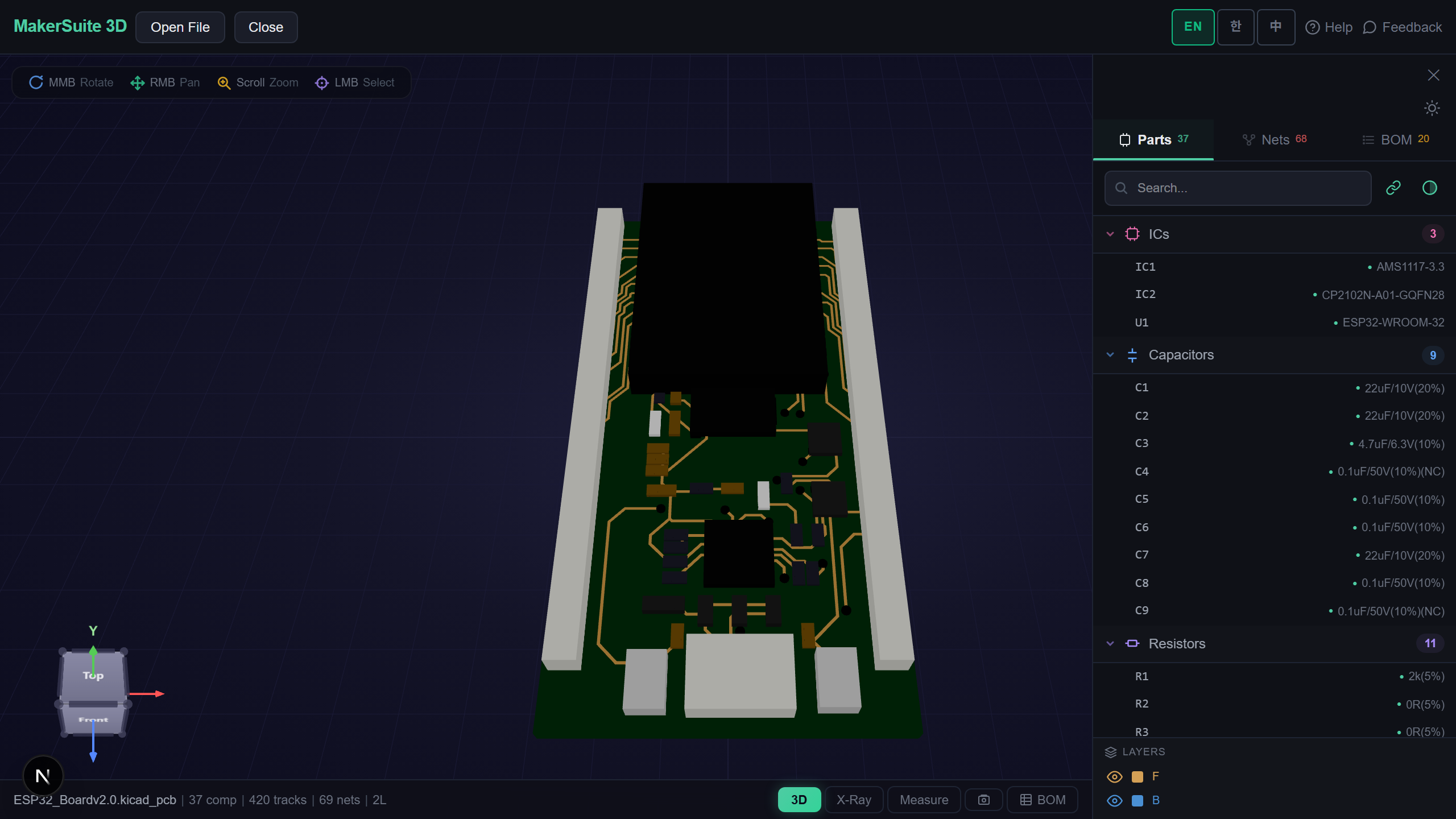
A Board on GitHub Is One Click Away
GitHub shows a .kicad_pcb or .PcbDoc as a wall of text or a "binary file" notice. To actually look at the board you had to clone the repository and open a CAD tool. Now you can paste the file’s GitHub link into MakerSuite 3D and the board opens in 3D — your browser downloads it straight from GitHub, nothing passes through our server.
How to Open a GitHub File
- On GitHub, open the design file itself (the address bar then contains /blob/) and copy the link
- Paste it into the link box under the drop zone on the MakerSuite 3D home page, or go to pcbviewer.app/open?url= followed by the link
- The board or schematic opens in the viewer; a hierarchical KiCad schematic brings its sub-sheets from the same folder automatically
- Open Share in the viewer to copy a README badge for that file
Make a README Badge
Paste a GitHub link to a board or schematic file. Put the Markdown in your README: anyone who clicks the badge opens the file here in 3D, always the latest version on that branch.
Paste a GitHub link and see the board in 3D - nothing to install.
Try MakerSuite 3D FreeWhat Works
- Formats — every board, schematic and library format the viewer opens: KiCad, Altium, Eagle, EasyEDA, PADS, P-CAD, Protel 99 and Gerber ZIPs
- Links — GitHub file pages (/blob/ and /raw/), raw.githubusercontent.com links, GitLab file pages, and files stored with Git LFS
- Hierarchy — sub-sheets of a KiCad schematic are fetched from the same folder
- Privacy — the download goes from GitHub to your browser; the file is never uploaded anywhere
Limits
Private repositories cannot be opened this way (the browser has no access to them) — download the file and drop it instead. GitHub is often unreachable from mainland China; the same applies there. Only GitHub and GitLab links are opened; for files hosted elsewhere, download and drop them.
Why a Badge Instead of a Screenshot
A screenshot in a README goes stale the moment the board changes. A badge links to the file itself on a branch, so every click shows the current layout — with net highlighting, measurement, BOM and DFM checks one click further.
For readers it removes the "clone, install KiCad, open" step that keeps most people from ever looking at a hardware repository’s board.
Frequently Asked Questions
Is the file uploaded to MakerSuite 3D?
No. Your browser downloads the file directly from GitHub (raw.githubusercontent.com allows this) and parses it locally. Nothing is sent to our server.
Which links work?
A GitHub file page (the address contains /blob/ or /raw/), a raw.githubusercontent.com link, or a GitLab file page. A repository or folder link does not work - open the file first and copy its address.
Does the badge always show the latest version?
Yes, if the link points at a branch such as main: each click downloads the file as it is on that branch. Link to a tag or commit to pin a version.
Can I open a private repository?
No. The browser has no access to private files. Download the file and drop it onto the page instead.
Related Articles
Paste a GitHub link and open a board now — free.
Open MakerSuite 3D